
Online Markdown Viewer — Read Any .md File in Your Browser
An online Markdown viewer renders any .md file in your browser with nothing to install — what good viewers support, and which ones keep your file local.
1. When You Actually Need a Markdown Viewer
The need arrives with the file, not on a schedule. You click Download on a README in a GitHub repository and a README.md lands in your Downloads folder; double-click it and Windows offers Notepad, macOS Quick Look shows a wall of # symbols and pipe characters — technically readable, practically hostile. An agent you ran last night delivers its summary as project-brief.md. A colleague emails meeting-notes.md because that is what their tool exports. In each case the document itself is complete and well-structured; what is missing is the environment that renders it.
That used to be a niche annoyance for developers, and 2026 has made it an everyday event. AI assistants and agents default to Markdown for anything with structure — deliverables, changelogs, research summaries, task handoffs — so the files multiply at the pace of your tooling, riding the same adoption wave our Markdown format explainer documents. The writing side of the format is well covered elsewhere; the reading side is the gap this article fills. What a viewer should render, which rendering differences matter, and where your file goes while it renders — those questions have concrete answers, and they are worth two minutes of your attention before you paste a private document into the first search result.
2. The Browser Path: Open the File and Read It
The lightest path runs in a browser tab and needs no installation, no account, and no upload. The whole workflow is three steps: open the viewer, open or paste the file, read. Everything else — dialect support, export, editing — is optional structure on top of that loop, and the loop itself takes about ten seconds.
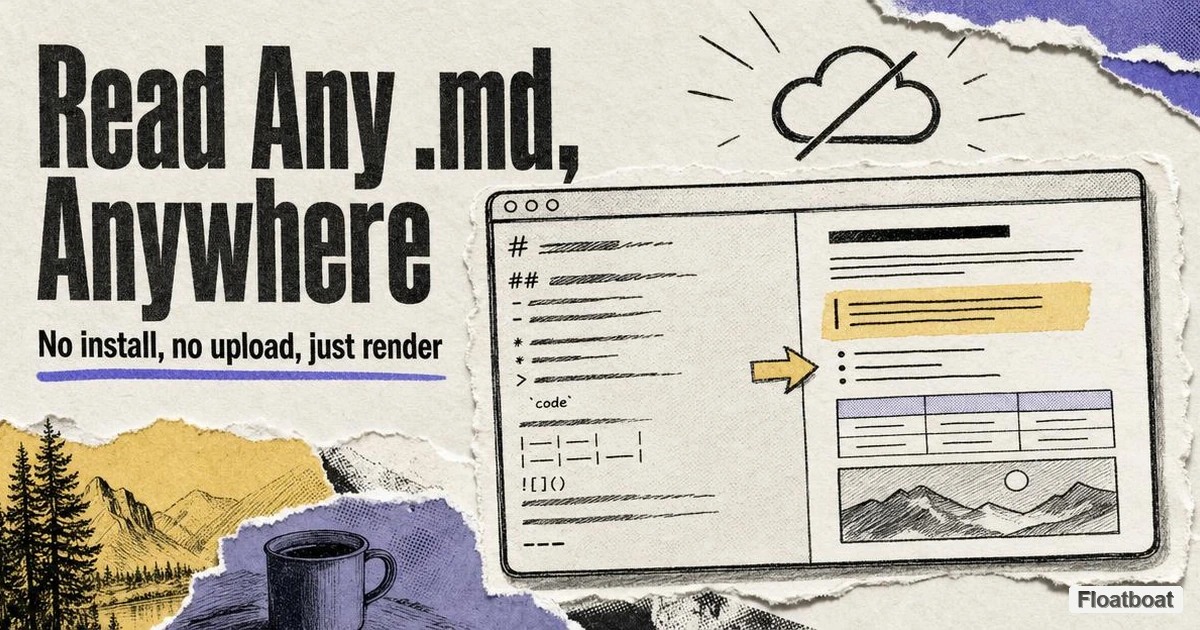
Concretely: open Floatboat's free Markdown viewer, drag your .md file into it or paste the text, and the pane beside the source renders the document as you read — headings sized, tables gridded, code blocks boxed and highlighted. For pure reading you can ignore the editing half of the screen entirely. The rendering runs client-side: the file is processed inside your browser and never uploaded anywhere, which is the property that makes this path usable for documents you would not paste into a stranger's website. If reading turns into fixing — a typo, a misaligned table row — the same view edits and re-renders live, and export to Word, PDF, or HTML is there when the document has to travel.
A browser viewer is the default answer, not always the best one. If the file lives in a repository you already have open, GitHub renders it in place with nothing extra; if you are actively editing code documentation, VS Code's preview is one keyboard shortcut away; if you just want to peek at a note on a Mac, Quick Look after a one-time plugin install is faster than reaching for a browser. The browser path earns its keep for files that arrive from nowhere in particular — downloads, attachments, agent output — which, in 2026, is most of them.
3. What You See vs What You Copy
A rendered view is HTML wearing your document's clothes, and the distinction matters the moment you start copying from it. Select a paragraph in the rendered pane and paste into Word, an email, or a chat window, and you get the formatted version — bold stays bold, the table survives as a table. Paste that same clipboard content into another Markdown editor, though, and you often get a mess: font tags, span wrappers, and styling residue left behind by the HTML intermediate.
Keeping the two artifacts straight prevents most copy-paste disappointment. The .md source is the archive — diff-able, portable, independent of any rendering engine — while the rendered form exists for eyes and for destinations that want formatting. When your goal runs the other direction — you have rich text or an HTML fragment and want clean Markdown source — that is a conversion problem rather than a viewing one, and our HTML-to-Markdown conversion guide covers what survives the trip and which tools do it cleanly.
The practical rule follows: copy from the source when the destination understands Markdown, and from the rendered view when the destination wants formatting. The common failure is mixing the two up — copying rendered output into a Markdown tool and then fighting the residue by hand, when copying the source would have pasted clean.
4. What a Viewer Should Render: A Five-Point Checklist
Most complaints about "broken" Markdown files trace not to the file but to a viewer missing dialect features the file assumed. Before trusting a viewer with real documents, it is worth checking five things, all testable in under a minute with any table-heavy README from an active repository:
- GFM tables, including the alignment colons (
:---,:---:,---:) that control column alignment — a table rendering as a wall of pipes means the dialect support is missing. - Fenced code blocks with language tags, rendered as highlighted boxes rather than literal backticks.
- Task lists (
- [ ]/- [x]), which should render as checkboxes or at least as clean bracketed markers, not raw syntax. - Nested lists with correct indentation handling, since list parsing is where renderers most often quietly fail.
- A way to take the document with you — copy as formatted text, or export to HTML or PDF — for when reading turns into forwarding.
Any one of these missing does not make a viewer useless; it makes it silent. The failure is a table that reads as garbage, discovered after you have already forwarded the render to someone else. The five checks take a minute: paste in a README, scroll, look. If the tables grid and the code highlights, the viewer speaks the dialect your files were written for.
For a systematic version of the same test, our Markdown syntax reference provides copy-paste samples of every construct above, deliberately including the edge cases — mis-indented nested lists, unescaped pipes — that separate a GFM-complete viewer from a partial one.
The Same Checklist as a Capability Matrix
The five checks read differently once the four reading paths sit side by side, because each path runs a different engine underneath and the gaps land in different places. The matrix below covers the checklist items plus the three extension-layer features most likely to hide in your files: footnotes, math notation, and Mermaid diagrams. As of September 2026, the honest picture looks like this:
| Capability | Browser viewer (client-side) | VS Code preview | GitHub web | Quick Look + QLMarkdown |
|---|---|---|---|---|
| GFM tables with alignment | Yes | Yes | Yes — the reference rendering | Yes |
Task lists (- [ ]) | Yes | Yes | Yes | Yes |
| Fenced code with highlighting | Yes, in capable viewers | Yes | Yes | Yes |
| Footnotes | Engine-dependent | Requires an extension | Yes | Depends on its extension set |
| Math notation (LaTeX) | Rare | Built into the preview | Yes | Depends on its extension set |
| Mermaid diagrams | Rare | Requires an extension | Yes, rendered natively | Typically not |
Three patterns fall out of the matrix that no single cell shows. First, the closer a path sits to GitHub's ecosystem, the fuller its extension coverage — GitHub's web view renders footnotes, math, and diagrams because READMEs demanded it, while the paths built for single-user reading fill extensions in unevenly. Second, the browser-viewer column is the widest-ranging of the four, which is exactly why the one-minute test matters: "online viewer" names a delivery mechanism, not a feature set, and two client-side tools can disagree about footnotes the way two editors disagree about plugins. Third, the "Yes" cells carry a scope caveat worth remembering before you forward a rendered copy — highlighted code does not imply supported math, and a viewer that aces the table test can still print literal dollar signs through your formulas. Where a cell says "depends", the reliable check is the tool's own documentation rather than a guess.
5. Why the Same File Renders Differently in Different Places
Markdown has no canonical renderer, which is why the same .md file can look crisp in one tool and mangled in another. The 2004 original spec left edge cases loose, implementations drifted, and GitHub — hosting most of the world's READMEs — standardized its own dialect; GitHub Flavored Markdown is documented as a strict superset of the CommonMark core, per GitHub's GFM specification, and as of September 2026 it is the de facto default most .md files are written against.
What differs between engines is mostly the extension layer: footnotes, math notation, wiki-links, and the exact behavior of tables and task lists. A viewer limited to strict original Markdown shows literal pipes where a table should be; Obsidian adds constructs no other engine renders; Notion converts imported Markdown into its own block model. The practical consequence is that a viewer is not a neutral window — it is an interpretation, and files written for GitHub look best in viewers that speak GitHub's dialect.
There is a deeper version of this question: whether Markdown should be the format agents emit at all, given its dependence on a rendering environment, or whether HTML — which renders itself — fits delivery jobs better. Our HTML vs Markdown for AI output comparison works through that trade-off with a decision framework. For the reading problem this article addresses, the short version is that .md won the handoff format, so viewers that render it faithfully are infrastructure, and dialect faithfulness is the first thing to check in one.
6. The Alternatives: VS Code, GitHub, and Quick Look
Three established paths read .md files, each with a setup cost paid once and a niche where it beats any browser tool. None of them requires the file to leave your machine either, which makes this less a privacy choice than a workflow one. The short version, before the detail:
| Path | Setup | Renders | Best when |
|---|---|---|---|
| VS Code preview | Install VS Code | GFM plus extensions | You are editing the file anyway |
| GitHub web view | File must be in a repo | GFM, the reference dialect | The file already lives in a repository |
| macOS Quick Look + plugin | One-time plugin install | GFM subset | Quick read-only peeks from Finder |
VS Code's built-in preview renders Markdown beside the source as you type, per Visual Studio Code's Markdown documentation, and it is the right answer when the file is documentation you will edit — the setup cost is the editor itself, trivial if you already have it and absurd if you do not — and if a dedicated app turns out to be the answer, the workflow-based ranking of Markdown editors sorts that choice. GitHub's web view is the most faithful GFM rendering available and the canonical home of READMEs, per GitHub's writing documentation; its constraint is that the file must be in a repository, private ones behind authentication, which makes it a poor general viewer for stray downloads and attachments.
Quick Look, macOS's spacebar preview, shows raw Markdown text by default; the open-source QLMarkdown extension adds GFM rendering to it as of September 2026, turning spacebar into a one-keystroke reader. It is read-only — no editing, no copy-as-source workflow — which is exactly right for reading and exactly wrong for everything else. If your .md intake is a handful of notes a week and you live in Finder, this is the lowest-friction path that exists.
7. The Privacy Question: Where Does Your File Go?
Online viewers divide by architecture into two kinds, and the difference is your file's location during rendering. Server-side viewers upload the document to a server, render it there, and show you the result; client-side viewers ship the rendering code to your browser and do the work locally. The interfaces can look identical, which is why the architecture is worth a deliberate check rather than an assumption.
What people actually paste into viewers is not always public: client notes, unreleased plans, personal journals, contract drafts. With a server-side tool, that content transits — and possibly persists on — someone else's infrastructure, under whatever retention policy the service runs, usually stated in a privacy page nobody reads. Nothing in the interface reliably tells you which kind a viewer is, so the check is manual: the privacy page, or a search for "client-side" and "local" in the tool's own documentation.
The Floatboat viewer named in Section 2 is client-side — rendering happens in your browser and the file never leaves your machine — which is a deliberate design position rather than a feature checkbox, and the reason the browser path in this article is safe to recommend for private documents. The honest boundary: a browser tool is only as local as the code it loads, so the strictest threat models still belong with a native offline editor. For the everyday case — files that are private but not adversarial — client-side rendering closes the real gap, which is "my document got uploaded in order to be displayed."
8. Reading .md on a Phone: Email, Chat, and the Missing Renderer
The attachment problem has quietly gone mobile. A README someone shares, a report.md that arrives as an email attachment, a file dropped into a chat — these reach the phone first now, and a phone's built-in preview handles .md the way desktop Quick Look does without a plugin: as plain text. On a six-inch screen the wall of # symbols and pipe characters is even less navigable than on a desktop, because long lines wrap unpredictably and table syntax that would at least align in a monospace font collapses entirely. The document is not broken; the renderer is simply not there.
The second path is the browser again, with mobile-specific friction. There is no drag-and-drop on a phone: you either use the share sheet to hand the file to a viewer open in your browser, or open the viewer first and paste the text, which is usually faster. Chat apps add quirks of their own — some are strict about unfamiliar file types or funnel you into a preview that strips structure, and mobile browsers sometimes bury the file picker a level deeper than the desktop equivalent. A viewer with a single-pane reading mode earns its keep here, because even a correct rendering feels cramped in a two-pane desktop layout on a phone screen.
The third path is deciding the phone is the wrong place to read at all. When the document will be judged by someone else — a Markdown resume attached to a job application is the sharpest example — raw syntax reaching a recruiter's phone undoes whatever care went into the writing, so the move is to render or export to PDF before sending rather than hope the recipient has a viewer. For documents only you need to read, opening the file on a desktop later is a legitimate answer; the format keeps, the moment does not have to. What matters is recognizing that a phone is a third rendering environment, with its own dialect of the same failure.
9. Printing and Sharing: From Viewer to PDF Without Layout Surprises
Reading is only half of what a viewer gets asked to do; the other half is producing the copy you forward, and PDF is the format that survives forwarding. Most client-side viewers expose an export-to-PDF button, and the browser's own print dialog — printing the rendered pane to "Save as PDF" — covers the rest. Either way, you are paginating a document that was written for continuous scrolling, which is precisely where the surprises live.
The margins and the page breaks deserve a deliberate pass. Browser print defaults use narrow margins and inject headers and footers — including the URL of the page doing the printing — so set roughly two centimeters of margin and switch those off before saving. Then scroll the paginated preview once: long tables split across page boundaries without repeating their header row, code blocks can be severed mid-block, and a heading stranded as the last line of a page reads badly on paper even though it never bothers anyone on screen. Wide tables bring a problem of their own, since six columns that grid fine in the browser can overflow portrait page width; the fix is landscape orientation or a smaller font, not hope.
Two final notes keep the export honest. A dark-theme render wastes toner and frequently prints with unreadable contrast, so switch the viewer to its light theme before exporting. And a PDF made from a rendered pane carries no page numbers, no table of contents, and no live link targets — which matters when the document cites sources by URL, and which is why sending the .md source alongside the PDF is sometimes the generous move. For a one-page summary none of this rises above noise; for a ten-page spec headed to someone's inbox, the one-minute pagination check is the difference between a document and a photocopy of a screen.
10. Conclusion
The .md reading problem is an environment problem: the document is fine, the renderer is missing. A browser viewer fills that gap with zero setup, and the two checks worth making before you trust one are dialect completeness — does it grid GFM tables and highlight fenced code? — and architecture — does the file stay in your browser? If you already live inside VS Code, GitHub, or a rigged-up Quick Look, those paths win on workflow and lose nothing on privacy. If not, open the next agent-generated .md that lands in your downloads folder in a client-side browser viewer, paste in a table-heavy README first, and see whether the tables grid — that one check tells you most of what you need to know about the tool you are about to rely on. The same logic follows the file onto a phone and onto paper: on a handset the preview shows syntax where a viewer shows structure, and in a PDF the paginated preview stands between you and a table severed mid-row — always one minute, always before you rely on the render.
https://floatboat.ai/blog/markdown-viewer-online