
How to Convert Markdown to PDF — Three Ways Ranked by Friction
Convert Markdown to PDF via a free no-install browser tool, pandoc on the command line, or editor plugins — with fixes for broken tables, code, and fonts.
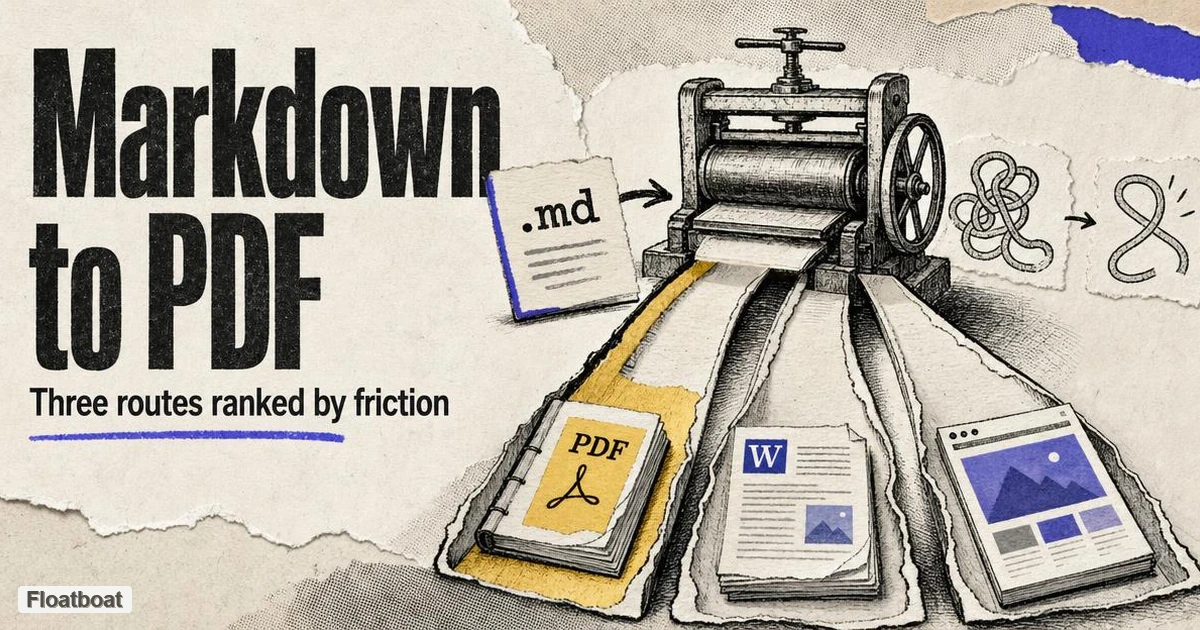
1. Why Markdown-to-PDF Is the Conversion Everyone Needs Eventually
Markdown is where documents get written; PDF is where they get delivered. A resume drafted in Markdown has to arrive as a PDF because that is what an application portal accepts. A client report needs fixed pagination, because "page 4" must mean the same thing on every screen and every printer. An ebook chapter, a set of meeting notes headed for print, a proposal that goes out attached to an email — all of them need the same guarantee. Markdown to PDF is the bridge between a format designed for writing and a format designed for delivery, which is why this conversion shows up in nearly every documentation and writing workflow sooner or later.
The two formats fail each other in predictable ways, and knowing the failure modes is half the battle. Markdown carries no page geometry at all: no page size, no margins, no fonts, no concept of a page break. PDF is nothing but page geometry. Every conversion tool is therefore making typographic decisions on your behalf, and the real difference between tools is which of those decisions it lets you override. Those levers — where they live, and which path gives you access — are the subject of section 5.
If the format itself is new to you, our Markdown explainer covers what the syntax was designed for and why plain text travels so well between tools. This piece assumes you already have a .md file in hand and a reason to make it a PDF.
2. Path 1: The Browser Route — No Install, Nothing to Configure
For a single document and a deadline, installing a document toolchain is the wrong amount of effort. The browser route treats PDF export as a rendering problem: your Markdown becomes a laid-out page, that page goes through the browser's print pipeline, and the PDF comes out the other end. It is the same pipeline your browser already uses to print anything, which is why this path needs no installation and almost no learning curve — and why it ranks first for anyone who does not convert documents for a living.
The workflow, concretely: open Floatboat's free Markdown tool in a browser tab, paste your Markdown or open the .md file, and watch the rendered preview update as you edit. When the preview looks right, export, and you get a print-ready PDF — sized for paper rather than for a browser window, so margins and pagination behave the way a printed document should. Because rendering happens with the fonts already available to your machine, the document you preview is the document you export.
This route has honest limits, and they are worth stating plainly. It processes one document at a time, it offers no scripting, and it will never be the right answer for a build pipeline that regenerates forty PDFs on every release — for that, the command line in the next section is the correct tool, and no web page replaces it. It also assumes your starting point is Markdown; if what you actually have is a web page or a Word file, run it through an HTML-to-Markdown conversion first, then come back here.
3. Path 2: Pandoc — the Command Line, With One Famous Trap
Pandoc is the reference tool for document conversion, a command-line program that reads and writes dozens of formats and has anchored the technical-writing toolbox for years, as pandoc's manual documents in detail. Install it from pandoc's installation page, and the basic conversion is one line:
pandoc resume.md -o resume.pdf
On a machine with no TeX installation, that command stops with an error telling you pdflatex was not found. This is the trap, and it surprises nearly everyone once. Pandoc does not render PDFs by itself: by default it generates LaTeX and hands it to a TeX engine, so a lightweight converter quietly requires one of the heaviest dependencies in desktop publishing. On Windows that dependency is usually MiKTeX; on macOS and Linux it is TeX Live or one of its smaller variants. A full TeX distribution runs to multiple gigabytes, and a fresh setup can halt mid-conversion to fetch missing packages — so the first run on a clean machine often needs babysitting rather than working straight through.
As of 2026 there is a well-established escape hatch: Typst. Pandoc has supported Typst as a PDF engine since version 3.1.7, which means the same conversion can avoid TeX entirely:
pandoc resume.md -o resume.pdf --pdf-engine=typst
Typst is a modern typesetting system distributed as a single binary measured in tens of megabytes, versus the multi-gigabyte TeX route — current builds are on Typst's site. The trade-offs are real but modest for typical documents: LaTeX keeps the deeper ecosystem of journal templates and specialized packages, and Typst output files can run larger because fonts get embedded in full. For Markdown-to-PDF on a new machine, the Typst route is the one we would set up first today.
4. Path 3: Your Editor — VS Code, Obsidian, and Typora
The third path is the one you may already have without knowing it. If the file is already open in your editor, exporting from there beats switching tools, and for drafts that live and die inside the editor, that is the whole decision. The catch is that editor exports are the least consistent of the three paths: quality depends on which extension you install and which fonts it bundles.
The options, as of September 2026: VS Code ships a Markdown preview out of the box, and browser print-to-PDF from there works in a pinch, but the cleaner route is an extension — the open-source Markdown PDF extension on VS Code's marketplace adds a right-click export to the command palette. Obsidian exports PDF natively from the note menu, no plugin required. Typora renders Markdown as you type and exports PDF from the File menu, though it has been a paid, one-time-license app since version 1.0. Each of these gets you a PDF without adding a new tool to your workflow, which is precisely their appeal.
The rough edges are consistent enough to dominate the Stack Overflow results for this path. Recurring complaints include code blocks split awkwardly across page breaks or truncated entirely, wide tables clipped at the right margin, and non-Latin text rendered as empty boxes when the export font lacks those glyphs. Page-break control is thin everywhere: the VS Code extension offers a stylesheet hook, but if you need a given heading to start a new page reliably, you end up fighting the tool rather than writing. These are the same fidelity problems section 5 catalogs — the difference is which levers you get, and here you get the fewest.
5. Format Fidelity: Page Breaks, Wide Tables, Code Wrapping, Fonts
Four defects account for nearly every "my converted PDF looks wrong" complaint: broken pagination, tables too wide for the page, code blocks that split or overflow, and text that exports as empty boxes. It pays to know which knob lives where before blaming the converter, because about half of these problems are cheaper to fix in the Markdown source than in any export setting. The table below maps the four defects to the controls each path gives you.
| Problem | Browser tool | Pandoc | Editor export |
|---|---|---|---|
| Page breaks | Print layout decides; limited manual override | Full control via templates and engine options | Stylesheet hooks, hit or miss |
| Wide tables | Wraps like a web page, rarely clipped | Depends on engine; LaTeX overflows unless you intervene | Frequently clipped at the margin |
| Code block wrapping | Follows the page layout, wraps or scrolls | Configurable through highlight settings | Recurring truncation reports |
| CJK fonts and embedding | Uses the fonts your system already has | Needs the right engine and font variables | Depends on the fonts each extension bundles |
The pattern in that table is deliberate rather than accidental. The browser route inherits web-layout behavior — tables wrap instead of clipping, fonts come from the machine — while the command line inherits print typesetting: fixed geometry, explicit levers, sharper defaults. Editor extensions sit in between and inherit whatever their authors implemented, which is why their behavior varies the most.
Two concrete recipes are worth keeping for the command-line path. For documents with Chinese text, the standard pandoc recipe pairs a Unicode-aware engine with an explicit CJK font, because the default pdflatex engine cannot handle CJK at all:
pandoc notes.md -o notes.pdf --pdf-engine=xelatex -V CJKmainfont="Noto Sans CJK SC"
And the source-side fix: if a table is too wide, cut columns in the Markdown before exporting, or split it into two narrower tables — a Markdown cheat sheet is enough to restructure it, and no export setting rescues a ten-column table as cleanly as rewriting it. Fixing the input first is the one fidelity lever that works identically across all three paths.
6. A Whole Folder of .md Files: The Batch Reality Check
Documentation sets rarely arrive as a single file. A docs directory, a changelog folder, a quarter of meeting notes — the question quickly becomes "convert all of these," and the three paths diverge sharply on it. This is where the free-and-easy option hits its genuine limit and the command line shows its age well.
The command line loops naturally, and the loop is short enough to memorize:
for f in *.md; do pandoc "$f" -o "${f%.md}.pdf"; done
That one line converts every .md file in the current folder, at no cost beyond the pandoc setup from section 3. For a folder that changes weekly, wrap it in a script and the problem stays solved; this is the batch answer technical users have been running for years, and it remains the free default.
The free web tool, stated plainly, takes one document at a time — fine for a resume exported from its markdown source, wrong for a folder of forty files. Folder-level batch conversion is where the folder-scale markdown workflow takes over from single-file tools: the desktop version of Floatboat takes a folder of Markdown files and exports them together, without writing a loop or opening a terminal. If your volume justifies that, the download page has the desktop build.
7. Conclusion
Pick by friction, not by power. One document and no appetite for toolchains: use the browser route, and the job finishes in the time a TeX distribution spends unpacking. Repeated, scripted, or version-controlled conversions: pandoc, with Typst as the engine unless you specifically need LaTeX's template ecosystem. Drafts inside an editor: export there and accept the rough edges, knowing section 4 is what they look like. And before blaming any converter for a broken-looking PDF, fix the source — narrower tables, shorter code lines — because every path renders honest input better than it rescues a wide one.
https://floatboat.ai/blog/how-to-convert-markdown-to-pdf