
How to Make a Table in Markdown — Syntax, Alignment and the Tricky Parts
The full guide to markdown tables: three-row structure, alignment colons, escaping pipes, line breaks inside cells, and why your table breaks in some renderers.
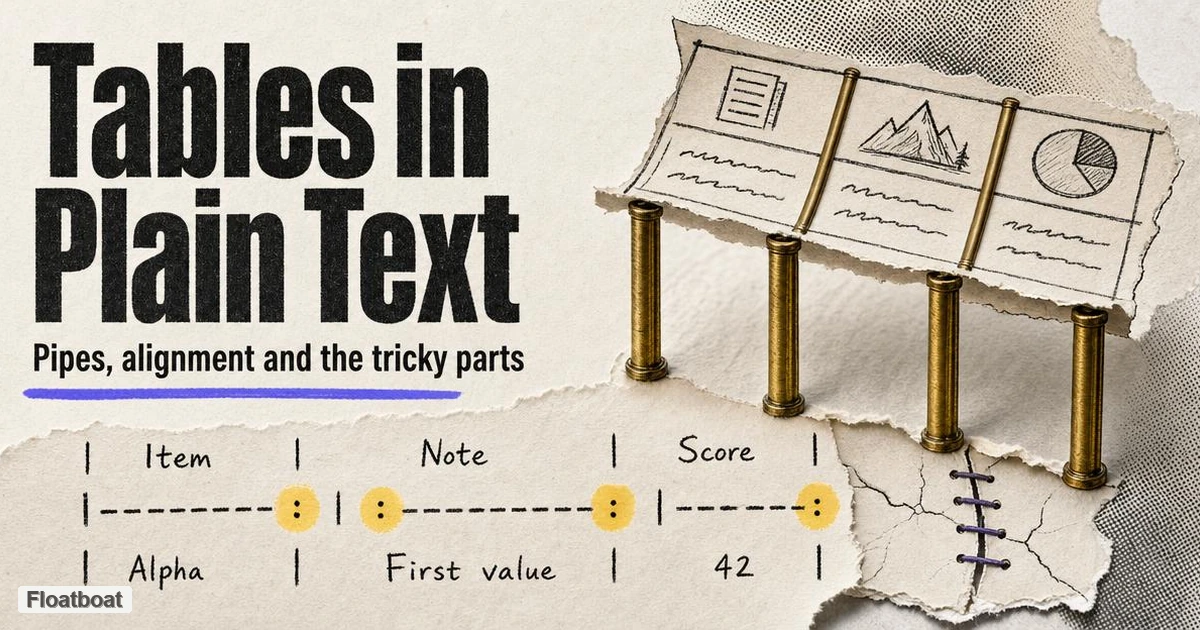
1. The Three-Row Structure
Every Markdown table starts with a header row, followed by a separator row that tells the renderer "this is a table," followed by any number of data rows. Here is the smallest complete example — three tools and what they cost:
| Tool | Free tier | Rendering |
|---|---|---|
| GitHub | Yes | GFM |
| Strict CommonMark | — | No tables |
| Most blog platforms | Yes | GFM-like |
The separator row (the second line) is the only structural magic. Its dashes say "table," and its colons say "alignment." Everything else — how many spaces you put around pipes, how wide you draw the columns — is cosmetic. These two tables are identical to a renderer:
| Short | Header |
|-------|--------|
| a     | b      |
|Short|Header|
|---|---|
|a|b|
The padded version is for humans reading the source file; the compact version is what you write when editing on a phone. Renderers do not care, and that is by design — GFM deliberately made pipes and dashes enough, because the point of Markdown is that the source stays readable as plain text.
Two more details of the format explain most of the odd tables found in other people's files. A GFM table must have a header row — there is no headerless table — so people who want one usually fake it with an empty header cell or a row of dashes. The outer pipes are also optional: a row written as a | b without leading and trailing pipes is still a valid two-column row, though nearly every style guide keeps them, because rows that visibly start with a pipe are easier to scan and far harder to break by accident when a line gets edited.
2. Column Alignment
The colons in the separator row control alignment, one per column: :--- for left (the default), :---: for center, ---: for right. Alignment is most worth setting on numeric columns, where decimal points should line up:
| Plan | Credits | Price |
|---|---|---|
| Solo | 10,000 | $37 |
| Team | 60,000 | $244 |
Reading the source, the colon placement is easy to remember as "the colon hugs the side the text hugs." A column with no colons at all is left-aligned. You can mix all three styles in one separator row, which is what makes GFM tables more useful than many visual editors' defaults — when a comparison table mixes names, counts, and prices, right-aligned numbers are the difference between skimmable and noisy.
The quickest way to feel what each colon actually does is to put all three alignments side by side on content that exposes them. In the billing table below, the member names suit a left edge, the statuses are short tokens that center cleanly, and the payments are amounts that want their units digits stacked:
| Member | Status | Paid |
|---|---|---|
| Ada Lovelace | active | $37.00 |
| Bjorn | pending | $244.50 |
| Chidi Anagonye | lapsed | $9.00 |
Left alignment gives words a stable edge to scan down, centering works for token-like values that would otherwise hug the left unevenly, and right alignment stacks the amounts so their magnitudes compare along one vertical line. None of this is visible in the source — the colons read as punctuation — and all of it is visible on the rendered page, which is the plane alignment actually operates on. Alignment is aimed at the reader of the output, not the writer of the file.
The case for right-aligning numbers is about comparison, and it strengthens as values grow more varied. When amounts share a right edge, 9.00, 37.00, and 244.50 can be ordered at a glance because the ones column falls on a single vertical line; left-aligned, each number ends in a different place and the eye has to find the end before it can compare size. For whole numbers of similar length the benefit shrinks toward aesthetics, which is why "numbers go right" is a strong default rather than an iron law.
There are also moments to deliberately skip the colons entirely. Prose-heavy columns — descriptions, notes, summaries — look fine left-aligned and usually worse centered, because text of varying length centered in a column grows ragged on both edges and slows re-reading. Centering deserves particular suspicion: it flatters one-word statuses and single characters, and almost nothing else. And when every column holds full sentences, alignment is no longer the problem — the format itself is, and that conversion deserves its own look.
It also helps to separate source formatting from alignment, because mixing the two up wastes editing time. Realigning the pipes so every source row has equal width changes nothing in the output; it is done purely for the humans diffing the file. Editor table formatters do this on save and are worth enabling wherever tables are common — they also make breakage obvious, since a row that lost a pipe stops fitting the column grid the formatter draws. The alignment colons are the part that changes the rendered result, which is why they are the one piece of table syntax worth committing to memory.
3. Formatting and Escaping Inside Cells
Cells accept inline Markdown: bold, italics, code, and links all work inside a cell. Two things do not work, and both cause support questions.
The first is a literal pipe character. A | inside a cell ends the cell — the renderer reads it as a column boundary. Escape it with a backslash: \|. This shows up constantly in tables about command-line flags or regular expressions:
| Flag | Meaning |
|---|---|
-o | Output file |
| | The pipe itself, escaped |
The second is multi-line content. A data row must live on one source line; pressing Enter inside a cell breaks the table. The widely used workaround is an HTML <br> tag inside the cell, which GitHub, Obsidian, and most blog platforms render as a line break — but it is HTML smuggled into Markdown, and stricter renderers will show the tag as literal text. If your cells need real paragraphs, the table is carrying too much; the content wants to be a list or its own section.
4. Tables, Lists, and Choosing Between Them
A table and a list are two encodings of the same structured information, and converting between them is a trade rather than a translation. Tables buy cross-item comparison: every row shares the same columns, so a reader can answer "which one is cheapest?" in a single vertical sweep. Lists buy depth and nesting: each entry can carry full sentences, sub-bullets, and code blocks, none of which fit inside a plain table cell. Choosing between them is therefore a question about the reader's primary motion — scanning across items, or descending into one item.
A small release tracker shows both encodings against the same data. As a table, it compares cleanly:
| Feature | Owner | Status |
|---|---|---|
| CSV import | Priya | shipped |
| Dark mode | Sam | in review |
| Webhooks | unassigned | blocked |
Three columns and three rows answer the cross-questions instantly: what is done, who owns what, what is blocked. The cost appears the moment a cell needs more than a phrase — "shipped" cannot expand into "shipped in v2.3, with a migration note for legacy tenants" without breaking the rhythm of its column. Cells are built for skimming, and they stay healthy only while they stay short.
The same three items as a list start to breathe. Notice what each line can suddenly carry:
- **CSV import** — owned by Priya; shipped in v2.3, with a migration note for legacy tenants
- **Dark mode** — owned by Sam; in review, pending one contrast-ratio fix
- **Webhooks** — unassigned; blocked on the rate-limit redesign
Each line now holds depth the table could never fit per cell, and any one of them can grow into a full paragraph without damaging the others. What is lost is the sweep: "what is blocked?" now requires reading every line instead of scanning one column. That sweep is the entire reason tables exist, so converting a table into a list pays only when per-item depth matters more to your reader than cross-item comparison.
Nesting, meanwhile, works cleanly in only one direction. A list can contain a table — a table placed under a bullet with consistent indentation is legal in many renderers, though several still mangle it, so it needs the same render check as any table. A table cell cannot contain a list at all in GFM: multi-line content forces <br> joins or literal HTML, and both carry the portability costs of smuggling markup into Markdown.
Some documents make the split obvious in practice. A Markdown resume is a worked example: experience and education live as headed sections with bullets because each entry needs dates and a story, while a compact skills matrix is one of the few tables that earns its place on such a page. The pattern generalizes — when most of your cells would have to hold sentences, flip to a list; when you catch yourself maintaining several parallel bullet lists that repeat the same labels, flip to a table.
The conversion itself is mechanical in one direction and editorial in the other. Table to list is mostly retyping: each row becomes a bullet and the cells become its sentence. List to table forces decisions — every attribute scattered across the bullets has to be promoted to a column, and anything that will not fit a column either becomes a footnote or gets cut. That asymmetry explains a quiet failure in documentation: a team converts lists into tables for the comparison view, discards the details that would not fit, and the finished table then reads as if the detail never existed.
5. When Tables Get Wide
Wide tables are where Markdown's simplicity stops being an advantage. There is no column-width control, no merged cells, no row spanning — GFM has none of these, as of September 2026. Three honest options exist for content that outgrows the syntax.
First, restructure the data: a four-column table with long cells usually reads better as a definition list or as one subsection per item, each with a short paragraph. Second, shorten cell content and move detail into prose after the table — a table is a skim layer, and its cells should survive skimming. Third, for platforms that allow inline HTML, a real <table> gives full control at the cost of portability and readability of the source; whether that trade is worth it depends entirely on where the document lives. If the content arrived from a web page in the first place, converting HTML back to Markdown will usually simplify the table rather than complicate it.
The HTML route has a lighter variant worth isolating: rather than replacing the table with a full <table> element, wrap the Markdown table itself in a scroll container such as <div style="overflow-x:auto">. As of September 2026, GitHub needs no help — it already wraps wide tables in a horizontally scrollable region — but on many blog platforms an unassisted wide table simply overflows the viewport on a phone. The wrapper forces that behavior wherever raw HTML is allowed, and it pays a heavier version of the <br> tax: stricter renderers print the container as literal text, right above the table it was protecting.
Because the three strategies optimize for different failures, ranking them is less useful than lining them up. The table below states each option's trade in one row:
| Strategy | Keeps comparison | Stays portable | Source stays readable |
|---|---|---|---|
| Split into two smaller tables | Per half | Yes | Yes |
| Definition list or subsections | No | Yes | Yes |
| HTML table with horizontal scroll | Yes | Partly | No |
Splitting is the only route that stays pure Markdown end to end, and its weakness is data whose meaning spans both halves — readers must hold one half in mind to read the other. The list route reads best on small screens but abandons the column sweep entirely. The HTML route preserves everything in one scrollable grid and quietly depends on the document's home tolerating raw HTML. A workable rule falls out: split when readers compare, list when readers study one item at a time, and scroll when the table is generated from data that nobody edits by hand.
When splitting, the seam matters more than the saw. The cut should follow question boundaries, not arbitrary width: a pricing table that mixes plan names, usage limits, and add-on pricing becomes one table answering "what does each plan include" and a second answering "what do add-ons cost," each with its own header row and its own takeaway sentence. Rows keep their identity across both tables because the key column — the plan name — repeats in each, so a reader who needs the full picture assembles it from two small sweeps instead of one long scroll.
One more workflow note: AI assistants generate Markdown tables constantly, and they frequently forget the pipe-escaping rule when a cell mentions commands or filenames. When an agent writes a table for you, check the columns line up — a misplaced unescaped pipe silently merges two cells, and the rendering breaks in a way that is obvious in a preview and invisible in the source.
Whichever route applies, wide tables age badly under hand maintenance. Columns get appended one release at a time until every source line runs three hundred characters and each edit produces a diff of near-identical pipes. That is usually the point at which the table has quietly become a data export — and exports should be produced from data, not retyped, which is exactly where converter tooling enters.
6. From CSV or Excel to a Markdown Table
Most tables that matter do not begin life as pipes and dashes. They begin as a spreadsheet, a database query result, or a CSV export — invoice runs, analytics downloads, contact lists, pricing matrices. The real job is usually not writing a table but converting one, and three paths cover nearly every case: by hand, with a dedicated tool, and by delegating to an AI assistant.
Manual conversion is the right call below roughly ten rows, because at that size tooling costs more attention than typing. Paste the rows into the editor, add the separator line, wrap everything in pipes — or, faster, paste tab-separated values straight from the spreadsheet and run one find-and-replace that turns tabs into pipes. Two traps are worth naming: commas inside cells need no treatment at all in Markdown, unlike CSV, and pipes inside cells still need the backslash escape no matter where the data came from.
The paste-and-replace move is small enough to show in full. A three-line CSV export becomes a table with one separator row and one find-and-replace:
name,role,note
priya,eng,"v2.3, delayed"
sam,design,v2.4
| name  | role   | note           |
|-------|--------|----------------|
| priya | eng    | v2.3, delayed  |
| sam   | design | v2.4           |
The quoted field survives conversion without any special treatment — the comma inside "v2.3, delayed" is harmless once the value sits between pipes. The only rule inherited from CSV is escaping: a cell containing a pipe would still need the backslash in front of it.
Dedicated converters are the dependable route for anything larger. As of September 2026, TableConvert converts between more than 30 table formats — including Excel, CSV, JSON, and Markdown — entirely in the browser on its free tier, and ConvertCSV takes CSV into Markdown alongside JIRA-style output. The same workflow also exists closer to the document: several of the best Markdown editors recognize a selection pasted from Excel or Google Sheets and build the table in place, which keeps the whole conversion inside the file being written. Every automated converter shares one caveat — quoted fields and escaped pipes are exactly where implementations differ silently — so spot-check any cell that arrived wrapped in quotes.
The third path hands the raw CSV to an AI assistant with a request like "make this a GFM table," and it is fast, tolerant of messy input, and characteristically fallible. Assistants forget the pipe-escape when a cell holds a command or a URL, occasionally round numbers so they look tidy, and sometimes drop rows they mistake for duplicates. Treat the output as a first draft: the structure usually lands, but every cell carrying money, dates, or names gets read back against the source before it ships.
Choosing among the three paths is mostly a question of size and trust. A dozen rows convert by hand before a tool would even finish loading; a quarterly report of two hundred rows goes through a converter or a script, never through fingers; and a messy, half-structured blob that no clean converter accepts is exactly the case where an assistant earns its keep. The failure modes scale differently too — a typing mistake breaks one cell, a converter misconfiguration breaks a whole column, and an assistant's mistake hides until someone actually reads the numbers. Whatever the path, the render check that closes any table edit is not optional.
7. Tables and Screen Readers
Accessibility is the least discussed constraint on Markdown tables, and the header row carries most of it. GFM renderers turn the header line into real header cells — th elements inside a thead, per the GitHub Flavored Markdown specification — and that structure is what screen readers build on: they announce the table's dimensions, then pair each data cell with its column header as the reader navigates. A Markdown table thus gets the single most important table-accessibility feature for free, provided the first row genuinely is a header rather than formatted data.
The limits arrive as soon as the table gets ambitious. Markdown has no caption mechanism, so a table cannot carry a programmatic title; screen-reader users hear the dimensions and then the cells, which is why the takeaway sentence in the paragraph before a table is doing accessibility work and not just prose work. There are no scope attributes, no spanning cells, and no multi-level headers, so the genuinely complex tables that accessibility guidelines warn about cannot be expressed at all — where one is truly required, the honest options are raw HTML with explicit attributes, or a restructure into several simple tables.
Two habits cover most of the remaining gap. Keep tables to one header row and reserve them for data rather than page layout — a layout table read aloud is pure noise — and decide what an empty cell means instead of leaving it blank, because a blank cell reads as nothing at all. Compare the draft row with the shipped one in this pricing table:
| Plan | Seats | Support |
|---|---|---|
| Solo | 1 | Community |
| Team (draft) | — | — |
The dashed row is not prettier, but it is explicit: every listener hears the same three cells and a definite "not applicable," instead of guessing whether content failed to load. Explicit empties cost one character and remove an entire class of ambiguity — and in tables, where cells get read out of context, that trade is almost always worth making.
None of this requires a formal accessibility audit to act on. Reading the table's source and asking one question — could someone reconstruct the point of this table from the header row plus the prose before it? — catches most problems. For anything user-facing and important, a five-minute pass with an actual screen reader, which every major operating system ships, settles how the table really announces; the experience usually surprises, because navigation moves cell by cell and, with proper headers, the column header is re-announced as each cell is crossed. Any cell that only makes sense because you remember the previous row's context fails out loud.
8. Verify the Render, Then Ship
Because table support varies by renderer, the last step of any table edit is looking at the rendered output, not the source. The failure mode is silent: the Markdown source is valid and readable, and on a strict renderer the whole table appears as a paragraph of pipe-separated text.
Paste the file into a browser-based Markdown preview, confirm the columns land where you meant them, and check the same file on the platform you actually publish to. If you keep notes or docs across more than one renderer, it helps to know which Markdown you are writing in the first place — core syntax travels everywhere; table behavior is where the dialects diverge.
Knowing what breaks narrows the check to a few glances. Columns that silently merged point at an unescaped pipe; a table rendered as one paragraph of text points at a missing or malformed separator row; a literal <br> or a raw <div> showing in the page points at a stricter renderer than the one the table was written for. Alignment deserves one extra look, because it fails invisibly — a separator row with colons in the wrong columns still renders a perfectly healthy-looking table, just one whose numbers quietly sit against the wrong edge.
9. Conclusion
Markdown tables are three lines of pipes and dashes: header, alignment row, data. The alignment colons are the only configuration worth learning, escaping pipes is the only real syntax trap, and long cells are a signal to restructure rather than a reason to fight the format. Where the syntax ends — merged cells, column widths, multi-paragraph cells — the honest answers are <br> workarounds, HTML, or less table.
Write the table, render it, and read it the way your reader will.
https://floatboat.ai/blog/markdown-table-how-to