
AI File Organizer for Mac: 5 Safety Checks Before You Run It
Before an AI file organizer touches your Mac, check its scope, iCloud behavior, permissions, preview and undo design, and backup plan.
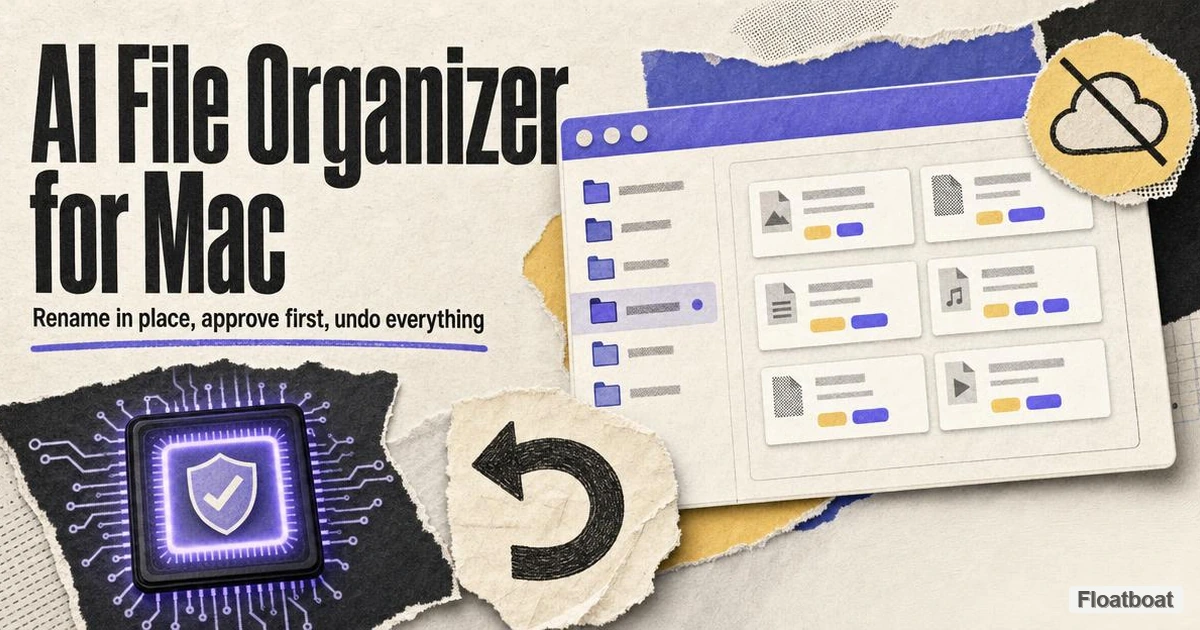
An AI file organizer can turn a folder of scans, screenshots, and vague downloads into useful names and groups. It can also rename the wrong extension, move a project dependency, trigger a cloud sync across devices, or make a bad batch hard to reverse.
The safe question is not “Which app has the most AI?” It is “Can I see, limit, verify, and undo what this app will do?”
Information checked October 13, 2026. The macOS and iCloud behavior below is based on current Apple documentation. Individual organizers change quickly, so confirm their current privacy policy, system requirements, and undo behavior before granting access.
What “organize” can mean on a Mac
AI file organizers usually perform one or more distinct jobs:
- Rename: replace vague filenames with descriptive ones.
- Classify: infer a project, document type, client, date, or topic.
- Move: place files into a proposed folder tree.
- Tag: add Finder tags without changing the file’s location.
- Find duplicates: identify likely copies for a person to review.
Those actions do not carry the same risk. A rename changes a file’s pathname. Moving a file changes its pathname and, when a folder moves, the path of everything below it. Tags can create another way to find the same file without moving it at all. Apple’s Finder guide notes that tags work for files stored locally or in iCloud, and that tagged items can be found from the Finder sidebar or search (Apple: Use tags to organize files).
Do not assume an alias, project file, automation, recent-items list, or application library will follow a rename or move. Test the exact workflow you depend on. Also exclude package-style libraries—such as an app-managed photo, music, or editing library—unless the application explicitly supports operating inside them.
For a broader map of the category, see what an AI file organizer does. The five checks below are the Mac-specific go/no-go test.
Check 1: Define the action and the boundary
Start with a narrow source folder and a separate, visible destination. Write down what the tool may do: suggest names, rename in place, add tags, create folders, move files, or flag duplicates. “Clean up my Mac” is too broad.
Exclude anything that behaves like code or a database unless you understand its structure:
- Git repositories and build directories;
- application bundles and package contents;
- virtual machines and disk images;
- mail stores and app-managed libraries;
- folders currently used by sync, backup, or automation jobs;
- files referenced by video, design, publishing, or development projects.
If the real problem is only filenames, a renamer has a smaller blast radius than a sorter. If you only need cross-cutting categories, Finder tags or Smart Folders may solve the problem without relocating files. Our organizer vs renamer vs sorter comparison helps separate those jobs.
One more boundary matters: deletion. Duplicate detection is not permission to delete. Require an explicit review queue, compare file contents rather than names alone, and keep deletion out of the first run.
Check 2: Make iCloud files local and understand the sync result
Files visible in Finder are not necessarily fully stored on the Mac. When Optimize Mac Storage is enabled, macOS can keep older iCloud Drive documents in iCloud when local space is needed. Apple also notes that Desktop and Documents can be stored in iCloud Drive and made available across devices (Apple: Store files in iCloud Drive).
Before content analysis:
- Check the folder’s iCloud sync status in Finder.
- Download the complete test folder and wait for it to finish.
- Confirm there is enough local space for downloads, temporary work, and rollback copies.
- Decide whether the destination remains inside the same synced area.
- Let syncing settle before judging whether files are missing or duplicated.
Moving a file into or out of a synced folder is not a private local experiment: the resulting change can propagate to other signed-in devices. Do not run the first batch on a shared Desktop or Documents folder while another sync tool is also managing it. Apple warns that another cloud service syncing those folders can interfere with iCloud Drive.
Check 3: Separate Mac permissions from AI data flow
macOS may ask an organizer for access to Desktop, Documents, Downloads, removable volumes, or other protected locations. Apple lets users manage per-app access under Privacy & Security → Files & Folders (Apple: Control access to files and folders).
Grant the narrowest location that can complete the test. A request for Full Disk Access is not proof of bad intent, but it is much broader than access to one selected folder. The vendor should explain why it is needed and what stops working if you refuse.
Then inspect a separate question: where does file data go? “Mac app,” “local index,” and “on-device OCR” do not automatically mean every AI step is local. Ask which of these may leave the Mac:
- filenames and folder paths;
- extracted document text;
- image thumbnails or full files;
- prompts and generated labels;
- diagnostics, crash reports, and usage telemetry.
Also check the processor, retention period, training policy, deletion path, and whether a bring-your-own-key option sends data directly to another provider. Our guide to whether AI file organizers upload files gives a fuller data-flow checklist.
Check 4: Demand a preview, collision policy, audit trail, and real undo
A safe preview shows old path → new path for every item before execution. A folder-tree mock-up is useful, but it is not enough if it hides filename changes or collisions.
The preview should make these cases obvious:
- two files resolving to the same destination name;
- an extension being changed or removed;
- a destination outside the approved root;
- an empty or low-confidence label;
- unsupported, encrypted, or unreadable files;
- a file that changed after analysis but before execution.
Ask what “undo” means. A reliable batch reversal must restore both names and locations, handle partial failures, and remain available after the app restarts. An audit log or exportable manifest is valuable because it records the original and final paths even if built-in history fails.
Metadata needs its own canary test. Verify Finder tags, comments, creation and modification dates, extended attributes, permissions, and resource forks that matter to your workflow. Apple says Spotlight relies on a regularly updated, local index and refreshes it as data changes (Apple: Spotlight indexing); a rename or move may take time to appear in search, so an immediate missing result does not by itself prove data loss.
Check 5: Back up, then run a canary batch
Sync is not the same thing as a recovery plan. A synchronized mistake can propagate. Before a material reorganization, create a current backup outside the folder being changed. Time Machine is built into macOS and can recover older, deleted, or inaccessible files; Apple recommends backing up to a location other than the internal disk (Apple: Back up your Mac).
Then copy 20–50 representative files into a disposable test folder. Include:
- an ordinary PDF and image;
- a scanned document that needs OCR;
- a non-English filename or document;
- two files with similar names;
- a tagged file with a Finder comment;
- a file referenced by a test project;
- an iCloud file downloaded locally;
- an unsupported or encrypted file.
Run the complete workflow on that copy. Inspect every proposed change, execute it, restart the organizer, undo the batch, and compare the result. Open the referenced project and search for the tagged files in Finder or Spotlight. Only then expand to a small real folder.
A practical decision table
| Your main problem | Lowest-risk first choice | What to verify |
|---|---|---|
| Names are meaningless, folders are already correct | Preview-first rename | Extensions, collisions, references, undo |
| Files belong to several overlapping projects | Finder tags or Smart Folders | Tag preservation and search behavior |
| One flat intake folder needs structure | Move into a new tree | Destination root, duplicates, sync scope |
| Scans cannot be searched | OCR or content-aware naming | Local/cloud processing and OCR accuracy |
| Suspected duplicates consume space | Review-only duplicate report | Content comparison; no automatic deletion |
| Mac and Windows share the same archive | Cross-platform naming and path rules | Invalid characters, path length, cloud behavior |
For that last case, use the separate AI file organizer for Windows checklist; Windows permissions, path rules, and cloud placeholders are not identical to macOS.
Red flags that should stop the run
Do not proceed if the organizer:
- cannot show every planned rename and move;
- offers no written explanation of data processing;
- requires broad permissions without explaining why;
- treats iCloud placeholders as ordinary local files;
- cannot describe collision and partial-failure behavior;
- equates “undo” with manually moving files back;
- deletes duplicates automatically in the default flow;
- asks you to test on the only copy of important data.
An AI model can make classification faster, but it cannot make a destructive action harmless. The safety comes from a narrow scope, a visible plan, recoverable execution, and verification on representative files.
The short answer
The best AI file organizer for Mac is not necessarily the one with the largest model or longest format list. It is the one that fits your actual job and lets you constrain access, inspect every change, preserve the metadata you use, reverse a batch, and prove the workflow on a copy.
Start with one folder, one permitted action, and one backup. If the tool cannot make that small run boring and predictable, it should not touch the rest of your Mac.
Related posts
Organize Receipts with AI: A Verifiable Filing Template
Organize receipts with AI by verifying vendor, date, amount, currency, type, and invoice number while preserving originals and isolating…
How to Clean Up Downloads Folder with AI, the Safe Way
Clean up a Downloads folder with AI using a sample-first protocol, scoped prompt recipes, small-batch approval, recovery tests, and a…
AI File Organizer for Windows: How to Verify Offline Claims
Evaluate AI file organizers for Windows by model location, network traffic, preview, restore evidence, and OneDrive placeholder behavior.
https://floatboat.ai/blog/ai-file-organizer-mac