
Organize Receipts with AI: A Verifiable Filing Template
Organize receipts with AI by verifying vendor, date, amount, currency, type, and invoice number while preserving originals and isolating uncertain fields.
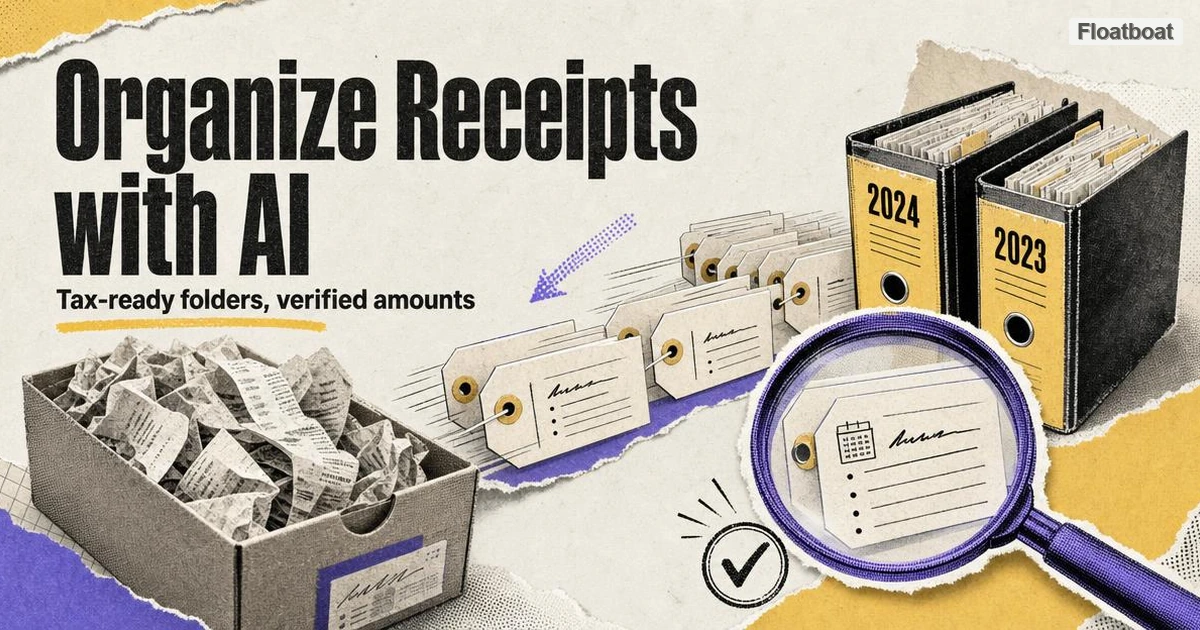
1. What Most People Get Wrong About Organizing Receipts
The most common mistake is treating receipt organization as a folder problem when it is really a naming problem. Two folders called Receipts and Invoices do nothing for you if the files inside are still named download(7).pdf, scan_0041.jpg, and Invoice_from_Acme(2).pdf — none of those names tells you the vendor, the amount, or the date, so every search degrades into opening files until you recognize one. The filename is effectively the database row of a personal archive: once it carries the fields your accountant checks — vendor, date, amount, type — the folders organize themselves and retrieval becomes a one-step search.
The second mistake is outsourcing the work to a scanner that only produces images. A phone scanning app that turns a paper receipt into IMG_4471.jpg has not organized anything: the text is locked in pixels, the file is named by a camera counter, and you have simply recreated the paper pile in digital form. Tools that OCR a pile into a single searchable PDF have the same weakness — the structure is one undifferentiated blob. A receipt organizer is only doing its job when the output filename and location encode the details a bookkeeper would ask for — which is why useful tools read content and propose names rather than flattening pages into images.
The third mistake is treating this as an annual cleanup instead of a monthly reconciliation. The time required depends on document volume and exceptions. Financial filing is structurally different from a general-purpose tidy-up: cleaning up your downloads folder with AI reduces clutter, while financial filing builds a traceable archive that connects each document to a source record and review decision.
2. Name by Content, Not by Extension
A file extension tells you which program opens the file — nothing else. invoice.pdf and receipt.pdf are both PDFs, and IMG_4471.jpg gives no clue whether the picture is a taxi fare, a hardware purchase, or a photo of your dog. The fields bookkeeping actually cares about live inside the document: the transaction date, the vendor or merchant, the amount, any invoice or receipt number, and the tax charged. So the organizing rule is to name files from what is printed on the page, not from the file type or the camera counter that produced the name.
An AI file organizer makes this automatic: it opens each document, reads the text, and proposes a filename built from the extracted fields instead of leaving whatever the downloader called it. Once you adopt the habit, each field in the name has a job. The ISO-8601 date comes first because 2026-09-14 sorts chronologically on every operating system. The vendor comes second because it creates a virtual folder — searching "acme" returns that supplier's whole history in date order. The amount enables what bookkeepers call glanceable verification — matching a bank-feed line to the right PDF without opening a single file. When the document is an invoice rather than a receipt, the invoice number matters most, because vendors, dates, and amounts all repeat while INV-2026-041 does not; it is the primary key tying the PDF to a ledger line. These are the invoice-naming conventions recommended across bookkeeping tooling as of 2026.
The mental shift is simple: you are not naming files for yourself to recognize next week. You are naming them so your accountant, your software, and your future self at tax time can answer "what is this, when, who with, and how much?" from the file list alone — a filename that answers those questions is portable, because its meaning is not stored anywhere else.
3. The Receipt & Invoice Filing Template (Copy-Paste)
Everything here is method-neutral: it works with any AI file organizer or content-reading renamer, including a manual workflow. You need two artifacts — a filename template and a folder tree — and both are copy-paste ready.
# Primary template — works for almost every receipt and invoice
{YYYY-MM-DD}_{Vendor}_{Amount}_{Type}.pdf
2026-09-14_Acme-Inc_142.83_Invoice.pdf
2026-07-19_Amazon-Business_89.40_Receipt.pdf

# Client invoices you issue — add the invoice number as the primary key
{YYYY-MM-DD}_{Vendor}_{InvoiceNumber}_{Amount}_{Type}.pdf
2026-08-02_Apex-Studio_INV-2026-041_2750.00_Invoice.pdf

# Multi-currency — add the three-letter currency code before the type
{YYYY-MM-DD}_{Vendor}_{Amount}_{Currency}_{Type}.pdf
2026-07-19_AWS_184.30_USD_Receipt.pdf
Keep the primary template as the default and add a field only when it earns its place. The invoice number goes in when you issue invoices yourself, because it is the number on your books, on the client's purchase order, and on the payment that eventually arrives — it is how the file will be found during reconciliation. The currency code goes in the moment you touch more than one currency; 184.30 alone is ambiguous between a USD and an EUR transaction, and ambiguity in a financial archive causes the mistakes nobody notices until tax time.
# Folder tree — grouped by tax year, then document type
Finance/
└── 2026/
    ├── 01-Invoices-Out/        # invoices you sent to clients
    ├── 02-Receipts-In/         # supplier bills and purchases
    ├── 03-Statements/          # bank and credit-card statements
    ├── 04-Contracts/           # signed agreements and quotes
    └── 05-Tax-Forms/           # 1099s, W-2s, VAT records

# Multi-client freelancers — add a client root above the year
Clients/
├── Apex-Studio/2026/Invoices/
└── Northwind-Co/2026/Invoices/
A year-first structure is one practical starting point, not a universal accounting requirement. Confirm the filing period, categories, original-document policy, and retention rules with the accountant or authority that will use the archive. The folder tree should follow that confirmed request rather than a tool vendor's template.
Three hygiene rules make the scheme survive contact with reality. First, normalize vendor names: decide the canonical form is Acme-Inc, and let every alias — "Acme Inc.", "ACME inc.", "Acme Incorporated" — resolve to it, so a search for "acme" returns everything. Second, keep filenames free of spaces and special characters: use hyphens inside names, underscores between fields, plain-digit amounts with two decimals, and no ampersands or parentheses. Third, when a receipt has no distinguishing features — two identical $4.00 coffee receipts — accept a collision rule such as appending -2, rather than inventing data that is not on the document. The rules are simple; the value is applying them to every file, every time, which is exactly what automation is good at.
4. What the AI Reads — and How to Verify It
Modern organizers do not guess only from filenames; they can read document content. Some digital PDFs include a usable text layer, while photographed or scanned paper usually requires OCR. Either path can misidentify dates, totals, currencies, or vendors, and thermal paper, folds, handwriting, unusual layouts, and low contrast add uncertainty. Treat every extraction as a draft to verify against the source.
Extraction quality hides in details that are easy to miss. The date on an invoice may be an issue date, a due date, or a paid date — decide which one drives the filename and stay consistent. Amounts carry currency symbols and decimal conventions that differ by region, so 142.83 and 142,83 are different numbers until the extractor knows the locale. Vendor names arrive in a dozen spellings of the same company, which is why normalization is part of reading, not a separate step. And the amount should be the total printed on the document, not a sum the model computed from line items — line items are exactly where vision models drop a digit. This is also where a plain filename renamer stops being enough: it cannot recover a vendor or amount that was never in the filename, which is the practical difference between a file organizer vs. a file renamer and a file sorter.
Preview, verify, approve
Because a misread amount is worse than an ugly filename, the workflow treats verification as part of the job, not an optional extra. The pattern: the organizer proposes a name from the fields it read; you preview the proposal, check the amount against a source you trust — the confirmation email, the card statement, the vendor portal — and only then approve the rename and the move. That check can catch a $142.83 receipt filed as $1,428.30 or attributed to the wrong vendor. Verification matters especially for scans and foreign-currency receipts. If a tool cannot show proposed changes before moving files, test on copies or use another review method.
A safer organizer pattern is product-independent: select a test folder or copies, inspect proposed fields, names, and destinations, approve a small batch, and verify the result against the originals. When evaluating a product, confirm its current preview, recovery, model, OCR, telemetry, and sync behavior in official documentation or the current build. Do not infer local-only processing or batch rollback from the words “desktop” or “AI file organizer.”
5. Scenario Recipes: Six Financial File Types, One System
The core template covers every document, but each financial file type has a field that deserves emphasis and a characteristic failure mode. These six recipes cover what most freelancers and micro-businesses collect; apply the base template and add the extra field in the last column.
| Scenario | Filename recipe | Double-check this |
|---|---|---|
| Client invoices you issue (accounts receivable) | 2026-08-02_Apex-Studio_INV-2026-041_2750.00_Invoice.pdf | Invoice number and the client's legal name — it may differ from the trading name |
| Supplier bills and subscriptions (accounts payable) | 2026-07-19_AWS_184.30_USD_Receipt.pdf | Vendor aliases ("AWS" vs. "Amazon Web Services") and recurring monthly amounts |
| Travel and meals | 2026-03-14_Uber_24.80_Receipt.pdf | Business purpose and who was present, kept as a note beside the file |
| Bank and credit-card statements | Chase-Business_2026-08_Statement.pdf | The statement period, not the download date — this is what reconciliation needs |
| Contracts and US tax forms (1099-NEC, W-2, K-1) | Acme-1099-NEC_2026.pdf | Form type and payer, and keeping business-entity documents separate from personal ones |
| VAT/GST-related document | 2026-08-14_Supplier-Co_412.60_Tax-Document.pdf | The document type and fields required by your local accountant or tax authority |
Some document types require context that is not printed on the receipt; others are issuer-controlled forms whose type and payer must be read from the page. Ask the relevant accountant or authority what supplementary notes and categories are required, and route uncertain documents to review rather than inferring a universal rule.
The VAT, GST, and multi-currency rows are reminders that “receipt” is not one legal category. Required evidence differs by jurisdiction and transaction. Ask the relevant accountant or tax authority which document types and fields must be retained; an organizer can separate confirmed categories but cannot make the tax determination.
6. The Monthly Close-Out
At month end, collect new documents from the folders and sources you actually use. Verify extracted fields against statements, emails, vendor portals, or other source records; approve changes in small batches; and route uncertain items to an exception queue. The duration depends on volume and exception rate. Quarterly, review vendor aliases and filing rules. At year end, apply the archive, retention, and new-period rules confirmed with your accountant or relevant authority.
7. Where a File Organizer Stops (and Bookkeeping Starts)
It is worth being precise about the boundary. A file organizer turns source files into a searchable, consistently named archive; it does not post journal entries, apply jurisdiction-specific tax logic, produce expense reports, or file returns. Those jobs belong to bookkeeping and expense systems. The two layers meet at evidence: invoices and receipts support the numbers in the books. Your accounting tool may reference the archive, receive exports, or use its own document store. Choose the handoff and access method with your accountant rather than assuming a local or cloud-synced archive is appropriate.
8. Verify the Data Path for Financial Files
Receipts and invoices are not vacation photos: a receipt carries your name, often the last four digits of a card, sometimes a business tax ID, and a bank or credit-card statement carries account numbers for an entire month of spending.
That makes financial documents a category where you should ask where processing happens first. Some modes may process locally; others may use cloud OCR, models, telemetry, or sync. Verify the exact mode and configuration rather than treating a desktop installation as proof that document contents stay on the device.
For a fuller treatment of possible data paths, see do AI file organizers upload your files. Verify the exact product version, selected model, OCR service, telemetry, sync folder, retention policy, and deletion controls. “Desktop” or “local-first” does not prove that document contents never leave the device.
9. Conclusion
Judge the archive by whether the intended reviewer can trace a document to its original record, verify the extracted fields, and identify unresolved exceptions. Reconcile new documents monthly without promising a fixed duration, preserve originals, and approve changes in small batches. If you test Floatboat's AI File Organizer, confirm the current data path and recovery behavior for the model and connectors selected.
Related posts
How to Clean Up Downloads Folder with AI, the Safe Way
Clean up a Downloads folder with AI using a sample-first protocol, scoped prompt recipes, small-batch approval, recovery tests, and a…
AI File Organizer for Windows: How to Verify Offline Claims
Evaluate AI file organizers for Windows by model location, network traffic, preview, restore evidence, and OneDrive placeholder behavior.
AI File Organizer for Mac: 5 Safety Checks Before You Run It
Before an AI file organizer touches your Mac, check its scope, iCloud behavior, permissions, preview and undo design, and backup plan.
https://floatboat.ai/blog/organize-receipts-and-invoices-with-ai