
How to Clean Up Downloads Folder with AI, the Safe Way
Clean up a Downloads folder with AI using a sample-first protocol, scoped prompt recipes, small-batch approval, recovery tests, and a repeatable review cadence.
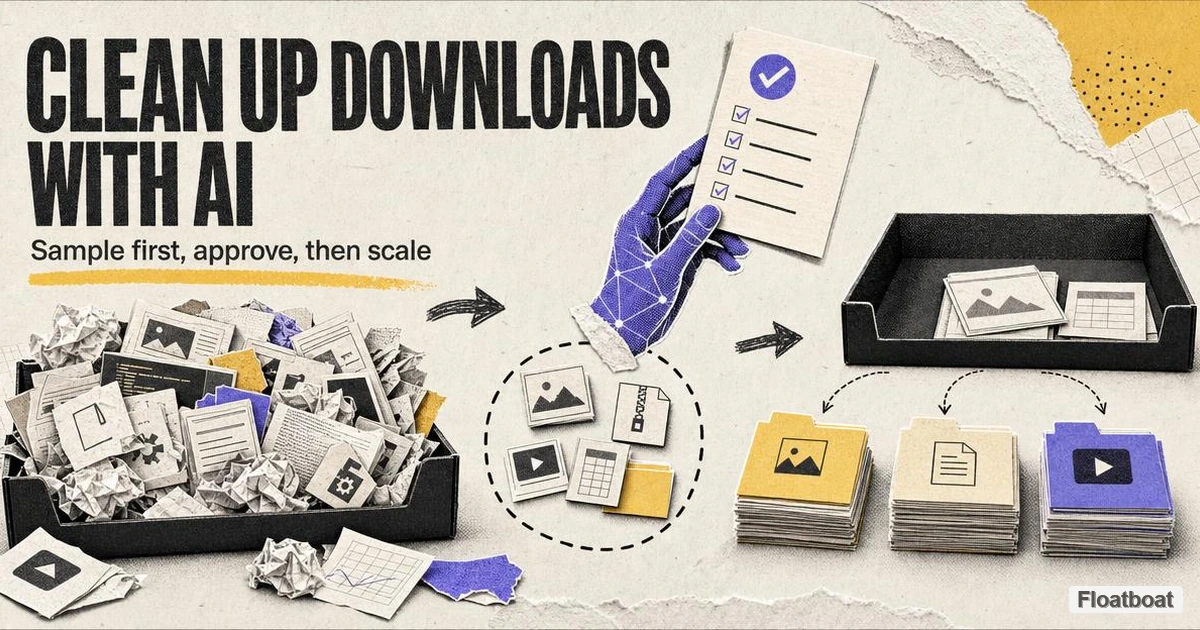
1. Why Your Downloads Folder Is the Cleanup That Never Stays Done
If you are new to the category, this tutorial assumes the working definition from our piece on what an AI file organizer is; here we skip theory and show the exact method. Real Downloads folders look like the one we walk through here: 600+ files mixing signed contracts, bank statements named statement-final(3).pdf, screenshots like IMG_2048.jpg, installers for apps you deleted two years ago, and three copies of the same export. No single file is precious enough to defend, yet the folder as a whole feels untouchable, because one mistake would make you distrust every file in it.
Manual sorting fails for reasons that have nothing to do with willpower. Routing hundreds of files by hand is decision fatigue on purpose: every file forces a judgment about a category, a destination, and whether it is worth keeping, and the brain runs out of those calls after the first twenty files. Second, even a perfect folder tree is only as good as its names, and names like Document(3).pdf or final_v2 are unsearchable by anything except the right guess. Third, discipline does not scale: a manual organizing session is a one-time event, and the folder rebuilds itself within two weeks because browsers and email attachments never stop feeding it.
A content-aware organizer breaks that loop differently from a better habit. Instead of asking you to make a hundred micro-decisions, it reads each file's actual content, proposes folders and clear names in plain language, and moves nothing until you approve the plan. The recurring failure was never that files are hard to understand — it was the absence of a repeatable, reversible process. The rest of this article gives you that process, designed so your first attempt cannot break anything.
2. The Safe First-Run Protocol: Test on a Copy Before You Touch the Real Folder
The single biggest mistake people make with an AI file organizer is pointing it at the real Downloads folder on the very first run. The stakes feel enormous — hundreds of irreplaceable documents — and the tool is unproven in your hands. The fix is simple: run the first pass on a copied sample in a scratch folder, watch what the tool proposes, approve it, and verify the result. If something looks wrong at that scale, you have lost nothing and learned everything.
A sample of 20–50 files is the right size: large enough to reveal how the organizer handles every file type you have, small enough that a five-minute review is realistic. Skew it toward your worst cases — receipts with cryptic names, an installer, a screenshot, a scanned contract — and copy, never move, so the real folder stays untouched. Leave out files you are using today.
Follow this sequence on your first run:
- Create a scratch folder and copy in 20–50 files. Name it something obvious like
Downloads-testand include the ugliest filenames you own. - Point the organizer at the scratch folder, not Downloads. State the outcome in plain language. In Floatboat, which we use as the worked example, type something like "tidy this folder by project and file type"; the app asks one clarifying question — by client, date, or type — when the structure is ambiguous.
- Read the entire preview before approving. Every serious organizer shows proposed moves: old name to new name, old folder to new. Cross-check the ten files you care about most. This review habit, not the AI, is what protects you — treat any tool that refuses a full preview as disqualified.
- Approve, then verify in the scratch folder. Open a few files, confirm the names are searchable, and check the tree matches what you asked. A contract renamed into something unrecognizable is exactly what you want to discover on a copy.
- Test undo before you need it. Trigger the rollback — ⌘Z in Floatboat, "undo run" or "restore last batch" elsewhere — and confirm every file returns with its original name and location.
Preview, approval, and recovery are the safety controls to look for; implementations differ by product and version. If a tool cannot show proposed changes or provide a documented recovery path, test only on a disposable copy or choose another method. Do not assume an operating-system undo command can reverse a bulk rename or move.
Once the scratch run behaves, the real run is anti-climactic: same prompt, same tool you already watched succeed. For a genuinely huge backlog, work in batches, because a plan covering a thousand files is not reviewable.
3. Five Prompt Recipes That Actually Clean Downloads
Prompts are the part of this workflow you can take anywhere, and they matter more than the tool. Organizers differ in mechanics — how they read files, which folders they watch, whether they run on-device — and in how cleanly they separate sorting from renaming, a distinction we cover in our AI file organizer vs. renamer vs. sorter comparison. What transfers across all of them is a well-scoped instruction: state the outcome, name the exceptions, forbid deletion, and demand a preview.
3.1. Client and project work
Freelancers accumulate the most damaging clutter here: a signed contract, a brief, three deck revisions, and a reference image, dumped within minutes and never reunited. Grouping by client and project turns Downloads from a black hole into the place you go for "that thing for Acme."
Clean up my Downloads folder. Group every work-related file by client name, then by project when a file clearly belongs to one. Put personal files (family photos, personal PDFs) in a separate "Personal" folder. Don't move installers. Rename a file only when the current name is meaningless, like "Document(3).pdf", and keep new names short and searchable. Show me the full plan before moving anything.
Adjust the destination to how you bill: if you organize by tax year, say so, because the prompt is the contract. If you already trust a structure, name it explicitly — "move into my existing ~/Clients/Acme folder" — instead of letting the organizer invent a parallel system.
3.2. Invoices, receipts, and tax documents
Receipts are the highest-stakes cleanup, because you discover a missing one in April, not in September. The point is not a tidy folder; it is a tax file you can hand to an accountant. That demands two things the prompt must spell out: a year-based structure, and names that encode vendor and date.
Organize these invoices, receipts, and financial statements. Create one folder per year (2025, 2024, and so on) and rename each file as YYYY-MM-DD_{vendor}_{document type}, for example "2025-11-30_FedEx_Invoice.pdf". When the filename is ambiguous, use the date printed inside the document. Move everything; delete nothing — I will decide what to discard.
Run this one on a small sample and read the proposed names carefully, because it is the pass where a wrong guess has real cost. If your organizer cannot read dates inside scanned documents, keep the year folders and skip the date prefix rather than trust IMG_0001.jpg. Receipts and invoices deserve a system of their own rather than a corner of a Downloads cleanup — for the field-by-field naming rules and folder structure, see our walkthrough on organizing receipts and invoices with AI.
3.3. Screenshots and design assets
Screenshots are where renaming pays off fastest: the files are numerous, the names uniformly useless, and the content visually obvious. An organizer that reads image content turns Screen Shot 2026-03-14 at 9.42.11 AM.png into something a search box can find. This is also the pass where content reading earns its keep, because no naming rule can guess what a picture shows.
Organize these screenshots, exports, and reference images for content work. Group them by project or topic based on what the image actually shows, and rename each with a descriptive slug like {project}_{what it shows}. Only keep a generic name when the content is genuinely unclear. Move assets I have already used into an "_archive" subfolder. Never delete anything.
Do not over-engineer this recipe. Two levels — a project folder and a descriptive name — are enough; a third level you invent for every screenshot is how systems die.
3.4. Installers and old installers
Installers are the closest thing to free wins in Downloads: the newest copy of each app is occasionally useful, everything older is landfill. The prompt below moves old versions aside instead of deleting them, because "old" is the call you want to make yourself.
These are software installers and updaters. Group them by app name into folders like "Installers/OBS" and "Installers/Notion". Within each group, keep the newest version where it is and move every older version into an "Installers/Old versions" folder. Do not delete anything — I will delete manually after reviewing.
3.5. Duplicates
Duplicates are the silent majority of download clutter and the one job where extension-based sorters are weakest: copies rarely share a name, so only content matching catches them. Tools that detect duplicates by content hash — rather than filename — define "same file" correctly. Still handle deletion yourself, because a duplicate is sometimes the only surviving copy.
Find duplicate files in this folder — same content, not just same name. For each group of duplicates, keep the one that is newest or already lives inside a project folder, and move the rest into a "Duplicates — review" folder. Never delete anything; I will review the folder and decide.
A "Duplicates — review" folder is the honest output: it does not pretend the tool knows which copy you want. If it is mostly empty after a few runs, change the instruction to trash extras directly — but start from "review."
4. From One-Time Cleanup to a Habit That Runs Itself
A cleaned Downloads folder reverts to chaos in about two weeks unless something enforces the structure, because the folder is an intake point and intake never stops. Manual organizers learn this the hard way: the folder they conquered in a heroic Sunday is back to 300 files by Friday. The fix is to stop treating organization as an event and treat it as a small recurring mechanism with three escalating levels.
Choose a weekly review window and approve only the files added since the previous run. The review may take more or less than five minutes depending on volume and ambiguity. A watched folder should come later, only after the same rules have succeeded on representative samples and you have tested duplicates, name collisions, unavailable destinations, and recovery.
The top rung is promoting a trusted prompt into a deterministic rule. Once a prompt has produced the right result several times, several organizers let you freeze it into a rule that applies instantly, with no AI judgment needed for the cases it covers. That is the right long-term state for Downloads: stable, predictable, and cheap, with the AI reserved for files that do not fit the pattern.
Choose a trigger you already have. If your week ends with a Friday wrap-up, attach the five-minute run to it. Mac users will find Finder-specific steps in our macOS AI file organizer walkthrough; Windows users, in the Windows setup guide. The organizer matters less than the scheduled five minutes — the folder's problem was never one big cleanup, but the absence of a recurring one.
5. What to Do When a Run Goes Wrong
Even with previews, a run will eventually feel wrong: a file in a folder you would not have chosen, a rename that lost context. Before panicking, remember what organizers never do — they move and rename, they do not delete. A wrong run has moved files somewhere, and recovery tools exist because the category knows this happens.
Undo immediately if the run just finished. The fastest recovery is the batch rollback you tested in the first-run protocol — ⌘Z in Floatboat, "undo run" in Sortio, a one-click batch revert in FileSensei — which restores the last pass in reverse order, names and locations included. Testing undo on a copy first means you have the reflex, not a documentation hunt, when the real folder needs it.
Use the run history when the mistake is older than the latest batch. Organizers that log every move — the better open-source tools store structured history — let you restore one file you regretted two runs ago. If your tool only undoes the latest batch, fix the single file by hand rather than undoing everything in a panic.
Reach for a backup or sync version as the last resort. If a file is genuinely missing, restore it from Time Machine or File History, or pull the earlier version from your cloud-sync client. On one disk, moves are metadata operations, so this should be vanishingly rare; when it happens it is usually because a duplicate-handling rule overwrote a file — which is why every prompt above says "never delete."
The deeper lesson of a wrong run is that you rarely need to fix files one by one — you edit the prompt and re-run. If every PDF landed in "Documents" but you wanted "Invoices by year," rewrite the instruction and run again; the second pass moves files forward, and the undo history means the first pass is never stranded.
6. Files You Should Never Let an Organizer Touch
Most cleanup disasters are caused not by the files you wanted to sort, but by the files you did not know were in the folder. Organizers are scoped to whatever folder you point them at, and that scope is your responsibility. Decide your exclusions before the first real run and put them in the prompt, because "organize everything" invites judgment calls you did not intend.
- Half-finished downloads.
.crdownload,.part, and.tmpfiles are mid-download; moving one mid-write corrupts it. Good organizers skip them and wait for the file size to stabilize — if yours does not, exclude them or wait until nothing is downloading. - Hidden and system files.
.DS_Store,Thumbs.db, and similar metadata files should never be routed anywhere. A folder tree full of them means the tool has no exclusions. - Symbolic links, aliases, and junctions. A link is not the file; an organizer that follows it can move the target, which may live inside an app bundle or a synced folder. Tell the organizer to leave links alone.
- Files that are open or in use. A spreadsheet open in Excel should not move mid-session. Close what you are using before a run, and treat a tool that moves in-use files as poorly behaved.
- Application and support files.
.appbundles, drivers, and files another application depends on are not clutter even in a downloads dump. The installers recipe handles these deliberately; a generic "tidy everything" does not. - Anything inside a cloud-synced folder or shared workspace. OneDrive Desktop, iCloud Drive, Dropbox, and Google Drive have sync clients watching; moving files inside a synced root can trigger re-sync cascades or remove a file a collaborator depends on. Stay within one sync root and never target a shared team folder's root. If the files are sensitive — tax documents, contracts — check whether the tool sends contents to a cloud model first; we explain what AI file organizers actually upload.
The pattern behind all six exclusions is the same: the organizer tidies the files you pointed at and leaves everything else exactly where it is. A prompt that names its exclusions is a prompt you can trust on a thousand files — trust comes from knowing the boundary, not from hoping the AI guesses it.
Bottom Line
You do not need to clean Downloads in one session, and you should not trust any tool—AI or not—to rearrange it unsupervised on the first try. Copy a sample, define exclusions, inspect the proposed tree, approve a small batch, and verify the result before expanding. If you evaluate Floatboat's AI File Organizer, use the same sample-first protocol and verify its current preview, data-processing, and recovery behavior in your installed version.
Related posts
Organize Receipts with AI: A Verifiable Filing Template
Organize receipts with AI by verifying vendor, date, amount, currency, type, and invoice number while preserving originals and isolating…
AI File Organizer for Windows: How to Verify Offline Claims
Evaluate AI file organizers for Windows by model location, network traffic, preview, restore evidence, and OneDrive placeholder behavior.
AI File Organizer for Mac: 5 Safety Checks Before You Run It
Before an AI file organizer touches your Mac, check its scope, iCloud behavior, permissions, preview and undo design, and backup plan.
https://floatboat.ai/blog/clean-up-downloads-folder-with-ai