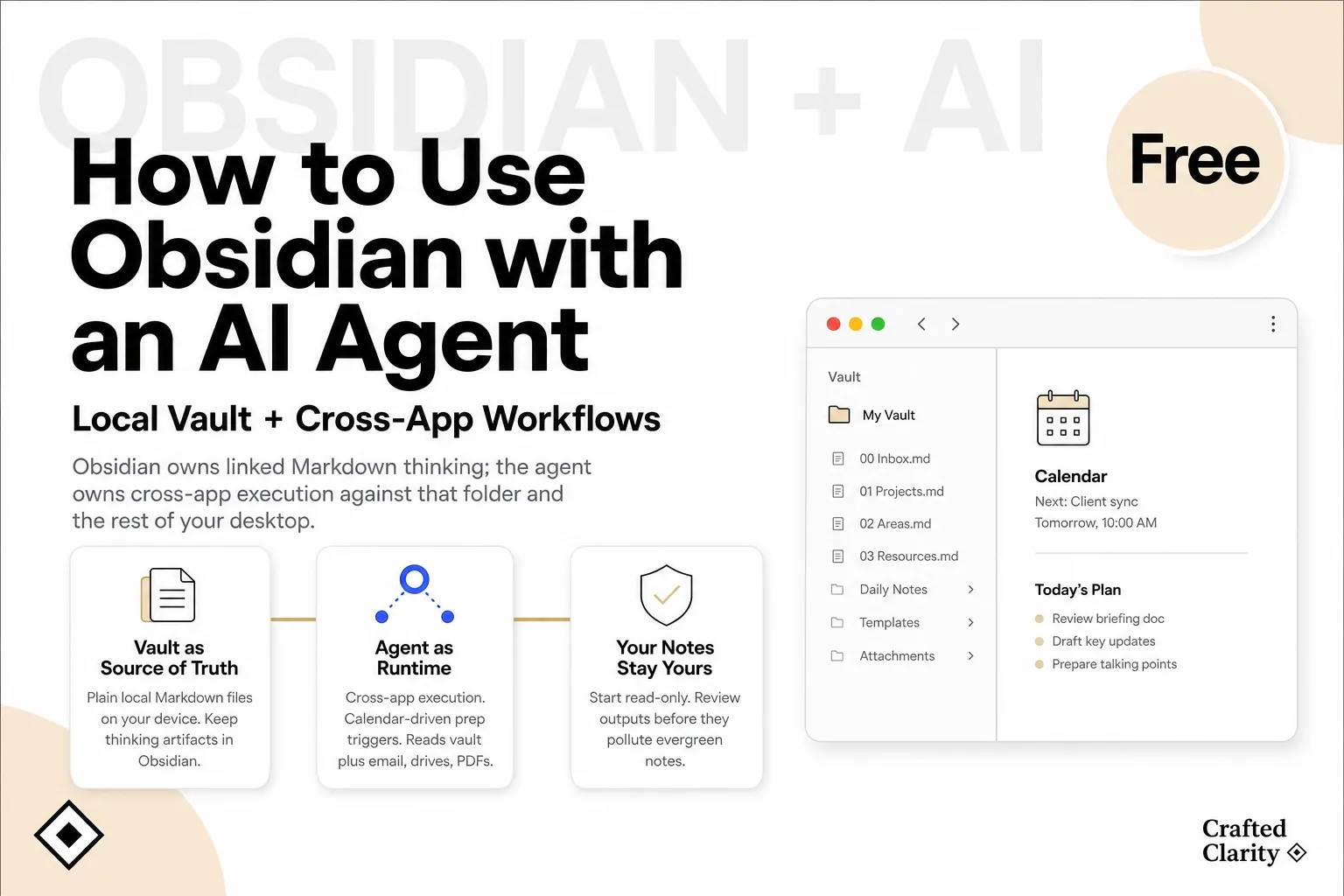
The safest way to use Obsidian with an AI agent is to treat the vault as durable source material, not as a sandbox. Give the agent the smallest useful scope, begin with a read-only task, send drafts to a dedicated inbox, and review every write before it becomes part of your long-term notes.
You do not need to replace Obsidian or install a particular plugin. Because an Obsidian vault is a local folder, an authorized file-capable agent can work with its Markdown. Obsidian’s own CLI offers a second, more structured route for automation.
Information checked October 13, 2026. Obsidian behavior below is based on its current official help documentation.
First choose the integration layer
“Obsidian with AI” can describe three different setups. Pick the one that matches the job instead of combining all three on day one.
| Layer | Best when | Main risk |
|---|---|---|
| In-vault assistant | You want search, drafting, or chat while Obsidian is open | A plugin may send note content to an external model |
| File-capable desktop agent | The job combines vault notes with PDFs, email exports, downloads, or other folders | Broad file permissions can expose or alter unrelated material |
| Obsidian CLI | You want repeatable commands for notes, properties, search, Bases, or daily notes | Scripts can repeat a bad instruction quickly |
The official Obsidian CLI guide says the CLI connects to a running Obsidian instance and requires a current installer (the guide specifies 1.12.7 or later). That makes it useful for structured operations such as reading a note, searching the vault, appending to a daily note, or querying a Base. Direct file access remains useful when the agent must combine the vault with material outside Obsidian.
Prepare the vault before granting access
1. Make a restorable backup
Copy the entire vault, not only its .md files. Attachments and vault-specific configuration matter too. If you use Git, commit a clean state before the first write-capable run; if you do not, make a timestamped copy or use a backup system with version history.
Sync is not the same as backup. A mistaken deletion can synchronize just as efficiently as a correct edit.
2. Define a narrow working set
Do not begin with “organize my whole vault.” Choose one project folder, a date range, or a small set of named notes. Keep .obsidian/, private journals, archived clients, and credential-like material outside the initial scope.
A useful first boundary looks like this:
Vault/
  Projects/Acme/       # readable
  Agent Inbox/         # writable
  Journal/             # excluded
  .obsidian/           # excluded
3. Establish a write-back rule
Tell the agent where outputs may go and what it must not change. A dedicated Agent Inbox/ folder works well because drafts are visible without being mistaken for curated knowledge.
For example:
Read
Projects/Acme/and create one draft inAgent Inbox/. Do not rename, delete, or edit source notes. Cite each source note by vault-relative path. Stop if a required file is outside the allowed folder.
This prompt is a permission contract, not a magic formula. The actual file permissions and product settings still need to enforce the same boundary.
4. Run a read-only task first
Ask for an inventory, a summary with file paths, or a list of unanswered questions. Check whether the agent finds the right notes and respects exclusions. Only then allow a small write into the inbox.
A practical first workflow: create a meeting brief
A meeting brief is a good first task because the output is bounded and easy to verify. It also fits the broader pattern in our AI meeting-preparation guide.
- Put the agenda and relevant client notes in one project folder.
- Give the agent read access to that folder and write access only to
Agent Inbox/. - Ask for a one-page brief with open questions, decisions, and a source-path list.
- Compare every factual claim with the cited notes.
- Move the approved brief into the project folder yourself, or explicitly approve that single move.
This separation keeps collection, generation, and curation from collapsing into one opaque action. The agent assembles; you decide what deserves to become part of the vault.
Use properties and Bases as an interface, not an excuse for bulk rewrites
Structured properties make agent work easier. A project note might use:
---
status: active
client: Acme
next_review: 2026-10-20
---
Obsidian Bases reads note properties and can expose them in table, list, card, kanban, or map views. The official Bases documentation confirms that the underlying data remains in local Markdown files and their properties.
That creates useful bounded tasks: identify notes missing status, propose normalized values, or prepare a CSV-style report. Avoid asking an agent to “standardize all frontmatter” in one pass. Property type changes, renamed keys, and rewritten dates can silently break filters and views.
Review writes like a code change
Before accepting an agent edit, inspect more than prose:
- Were filenames or paths changed?
- Do
[[wikilinks]], embeds, and attachment paths still resolve? - Were YAML keys preserved and values kept in the expected type?
- Did the agent create duplicate notes instead of updating the intended one?
- Did it touch
.obsidian/or plugin configuration? - Can you reverse the change from version history or a backup?
Keep batches small enough to review. Ten transparent edits are safer than one “clean up everything” command.
If the real problem is an untidy Downloads or project-dump folder, solve that outside the vault first. A supervised AI file-organizer workflow can prepare source material without turning your curated notes into the sorting area.
Local files do not make a cloud model local
Obsidian stores notes as local Markdown, but an agent may still transmit selected content to a model provider. Before using client, legal, health, financial, or personal material, check:
- which files the tool can read;
- whether processing happens locally or remotely;
- whether prompts and outputs are retained;
- whether data can be used for model improvement;
- which connectors, plugins, or subprocesses receive the content.
Do not infer these answers from the word “local” in Obsidian’s architecture. They belong to the agent and model service you chose.
When not to add an agent
Stay with ordinary Obsidian workflows when the task is quicker to do by hand, when the notes are too sensitive for the available model boundary, or when you cannot review the output. Search, templates, properties, Bases, and the CLI already cover many repetitive jobs without giving a generative system broad write access.
The useful question is not “Can an agent read my vault?” It can, if you authorize the files. The better question is “What is the smallest reversible job worth delegating?” Start there, prove the boundary, and widen access only when the evidence justifies it.
Related posts

What Is Gemini Agent? Google's Universal Work Agent Explained
Gemini Agent is Google's universal work agent for persistent tasks, multi-agent coordination, model routing, and work across business…
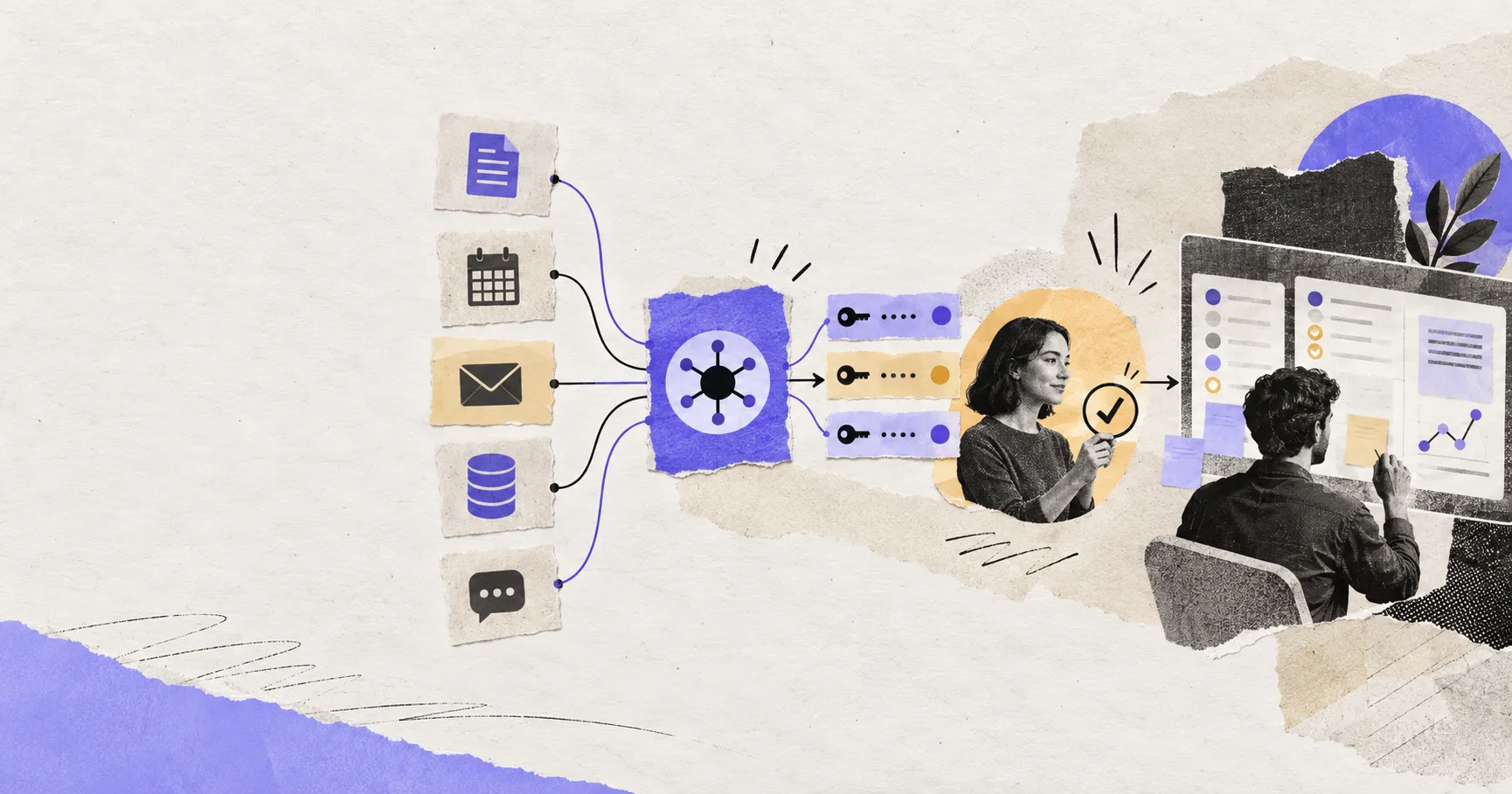
AI Agent Connectors Explained: MCP, OAuth, and Permissions
Learn how AI agent connectors use MCP, OAuth, scopes, resource permissions, and approval gates—and how to evaluate a connector before it…
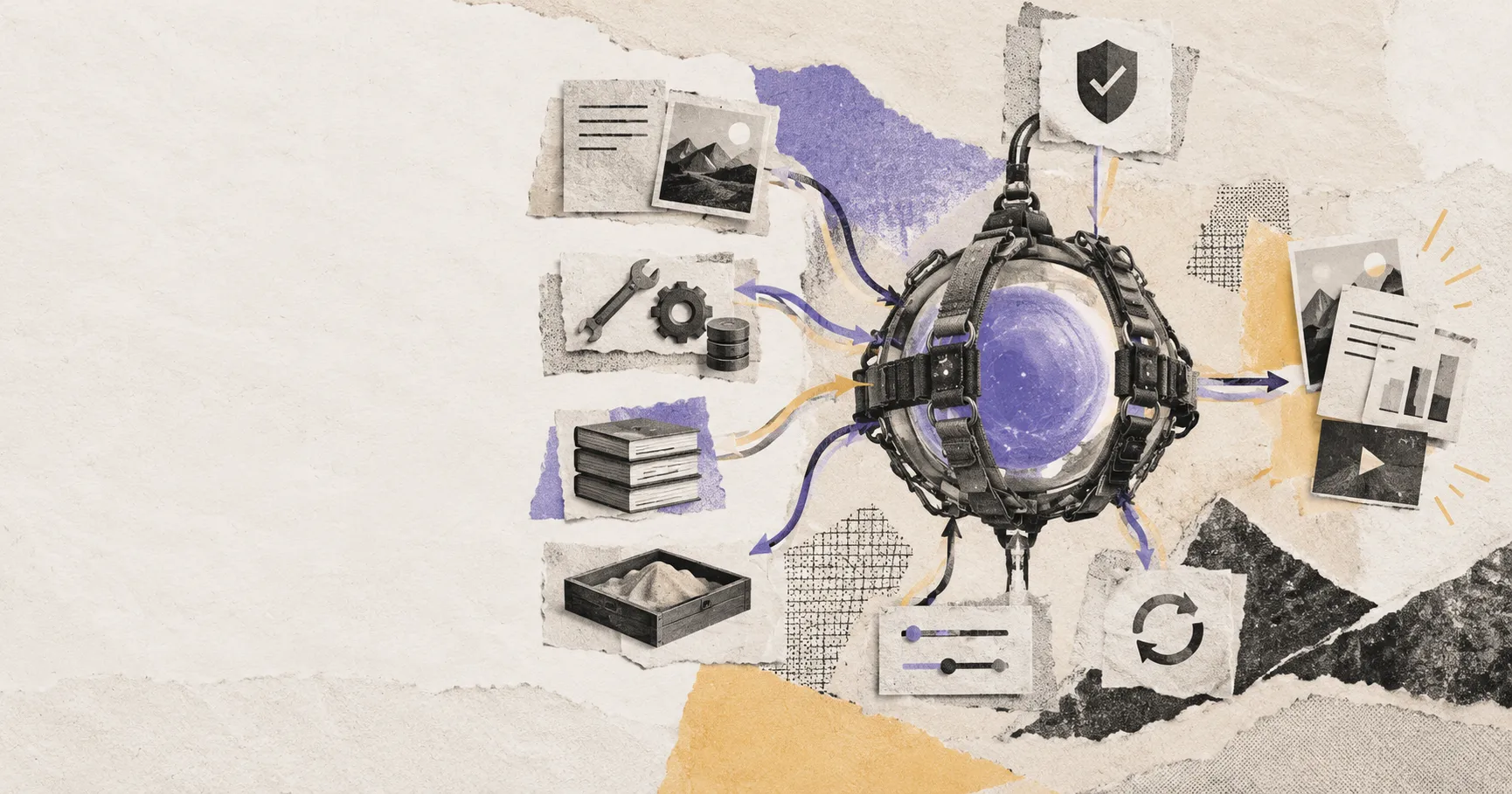
What Is an Agent Harness? Architecture, Loops, and Safety
Learn what an AI agent harness does, how its execution loop, context, tools, sandbox, approvals, tracing, and recovery fit together, and…
https://floatboat.ai/blog/how-to-use-obsidian-with-ai-agent