
Hi, I'm Nova. Last month I watched a demo where a browser AI agent filled out a CRM record, drafted a follow-up email, and pulled dashboard numbers — all from a single prompt. Looked incredible. Then I tried to replicate it on my own accounts and spent twenty minutes granting permissions before the agent misread a date field and entered garbage into Salesforce.
That gap — between the demo and the Tuesday afternoon — is what this article is about.
If you're running things solo or with a tiny team, you've probably heard the hype around browser agents. Maybe you've seen Codex for Chrome or Claude for Chrome drop recently. Before you install anything, here's what these tools actually handle well, where they fall apart, and how to figure out if they belong in your workflow.
Everything here reflects the state of things as of May 2026. This space is moving fast. Verify before you commit.
What Counts as a "Browser AI Agent" (and What Doesn't)
A browser AI agent is an AI that can see, navigate, click, and take actions inside your web browser — not just answer questions about a URL you paste in. It operates within your signed-in session: your Gmail, your CRM, your project management tool.
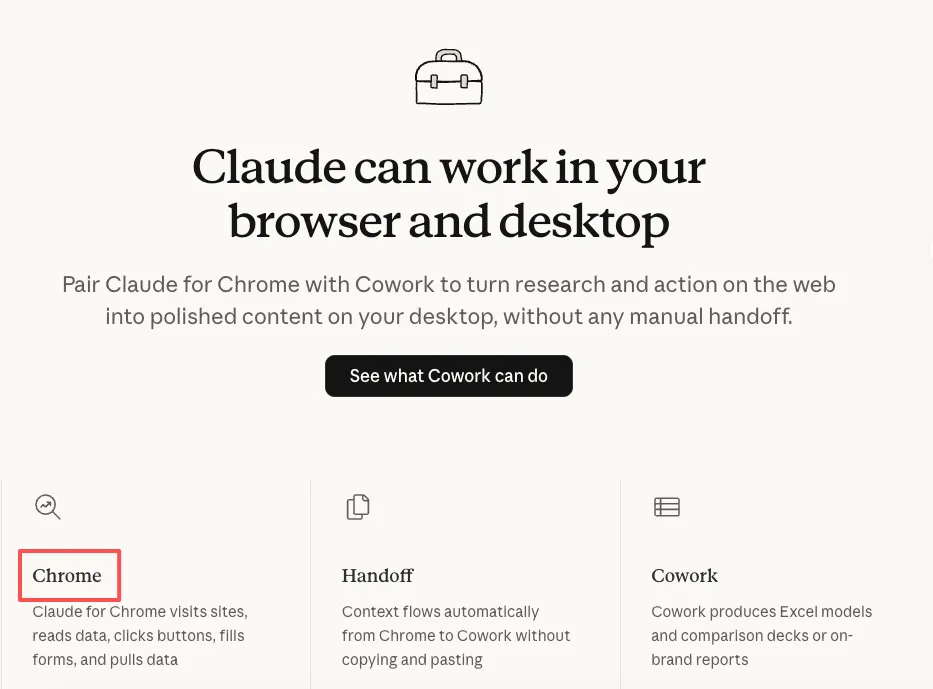
The two main players right now are Codex for Chrome (OpenAI, launched May 2026) and Claude for Chrome (Anthropic, in beta since late 2025). There are also full agentic browsers like ChatGPT Atlas and Perplexity Comet, but those replace your browser entirely. The extensions sit inside Chrome alongside your normal browsing.
What a browser agent is not : a chatbot in a sidebar that only reads text you copy-paste in. The defining feature is the agent can act on web pages — click buttons, fill fields, navigate between tabs, extract structured data from what's on screen.
6 Things Browser AI Agents Are Genuinely Good At
Reading and Summarizing Across Signed-In Tabs
This is the most reliable use case I've found. A browser agent reads the live content of pages you're logged into — email threads, Slack channels, Google Docs, project boards — and summarizes across them without you copying anything.
I ran it on a 30-message client email thread last week, asked for the three open action items, and got a usable answer in about fifteen seconds.
Form Filling and Structured Data Entry
Repetitive form filling — client intake, invoice details, CRM updates — is where agents start earning their keep. You describe what needs to go where, and the agent navigates the form fields and fills them. Claude for Chrome lets you record a workflow once and replay it later, which is handy for recurring data entry.
The key word is structured . If the form has clear fields and predictable layout, agents handle it well. The moment a form has dynamic dropdowns or conditional logic that changes based on what you enter, success rates drop.
Dashboard Monitoring and Triage
Checking three dashboards every morning for the same numbers? An agent can open each one, pull the metrics, and compile a summary. Claude supports scheduling this as a recurring task. Codex runs it as a background job across tab groups. Works best when dashboard layouts stay stable.
Multi-Tab Research with Citations
Browser agents can navigate across multiple tabs, read content, and compile findings with source references. This beats regular chat-based research because the agent reads your signed-in views — gated content, internal wikis, subscriber-only reports.
Cross-Tool Data Movement: CRM ↔ Docs ↔ Email
Moving client info from your CRM into a proposal doc, then referencing that in a follow-up email — this is the kind of multi-tool workflow that eats solo operators alive. A browser agent can chain actions across tabs: read from one tool, write to another.
I've had mixed results. Simple chains work. Longer ones — four or five steps across different apps — tend to drift partway through.
Repetitive Admin Inside SaaS Dashboards
Updating statuses on 15 project cards. Tagging a batch of contacts. Archiving old items. The boring, clicky stuff that takes twenty minutes and zero brainpower. Agents handle this well because the task is repetitive, the interface is stable, and the cost of a small error is low.
Oh, that's actually pretty useful — this is the category where I've gotten the most consistent value so far.
5 Things They Still Cannot Do Reliably
Long Branching Workflows Without Check-Ins
If a workflow has more than four or five steps, and the path changes based on what the agent finds at each step, reliability drops fast. The agent might take a wrong branch early and confidently execute the remaining steps on the wrong data. Both Codex and Claude offer "ask before acting" modes, but the more autonomy you give a browser agent, the more it can go wrong silently.
This is the gap between demos and real work. Demos show the happy path. Real work has conditionals, edge cases, and pages that load differently on Tuesdays.
Tasks Involving Creative Judgment
A browser agent can extract data and fill templates, but it can't decide which proposal angle will land better with a specific client, or judge whether a blog post draft captures the right tone. Anything that requires taste, strategy, or nuanced judgment is still on you. The agent can prepare the inputs; you make the call.
Anything Outside the Browser — Desktop Apps, Files
Browser agents operate inside Chrome. They can't touch your local file system, open desktop apps, or interact with anything that isn't a web page.
There's a nuance for dev-leaning operators: Codex routes localhost and development server work to its in-app browser , not to the Chrome extension. According to OpenAI's documentation, the in-app browser handles localhost previews, file-backed pages, and anything that doesn't require a signed-in session. The Chrome extension is specifically for signed-in web apps. If you're testing a local app, you're using a different tool than the one in your Chrome toolbar — worth knowing so you don't get confused about what goes where.
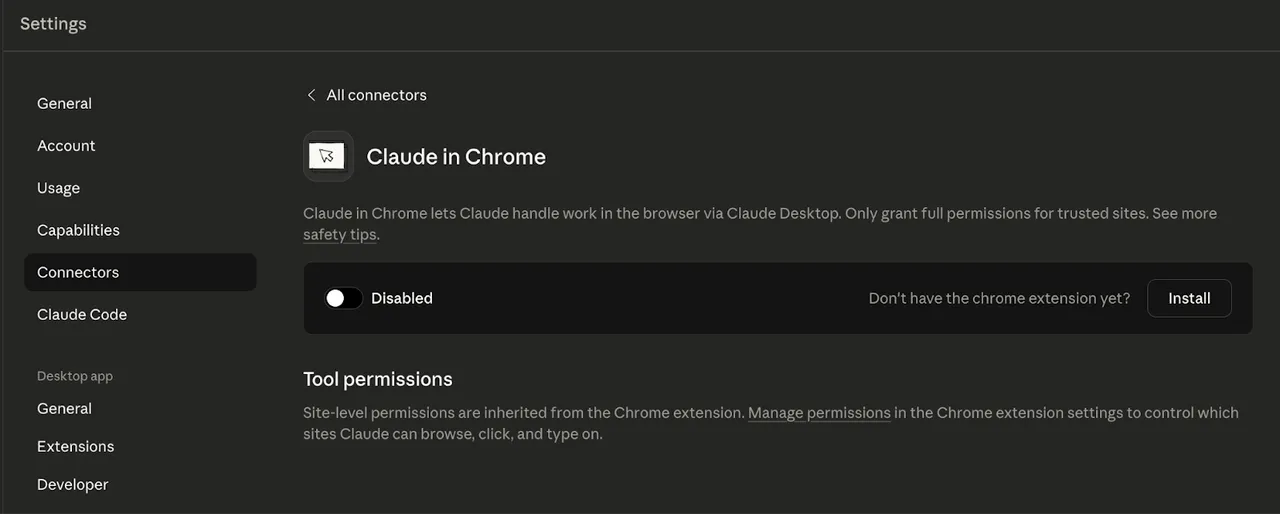
Claude for Chrome stays in the browser sidebar and can interact with localhost pages that are open in Chrome tabs, but it needs the Claude Code integration for the full terminal-to-browser loop.
Sites with Heavy CAPTCHA or Anti-Bot
Neither agent handles CAPTCHAs. Both stop and ask you to solve it manually. Sites with aggressive anti-bot measures — banking interfaces, government portals, heavily protected enterprise tools — will block or break under automated interaction.
Decisions Where Being Wrong Is Expensive
Sending a payment. Deleting records. Submitting a legal filing. Approving a contract change. If the cost of an error is high, don't let a browser agent do it unsupervised. Both tools have permission modes that require confirmation before taking action, and you should use them for anything where a mistake would be painful to reverse.
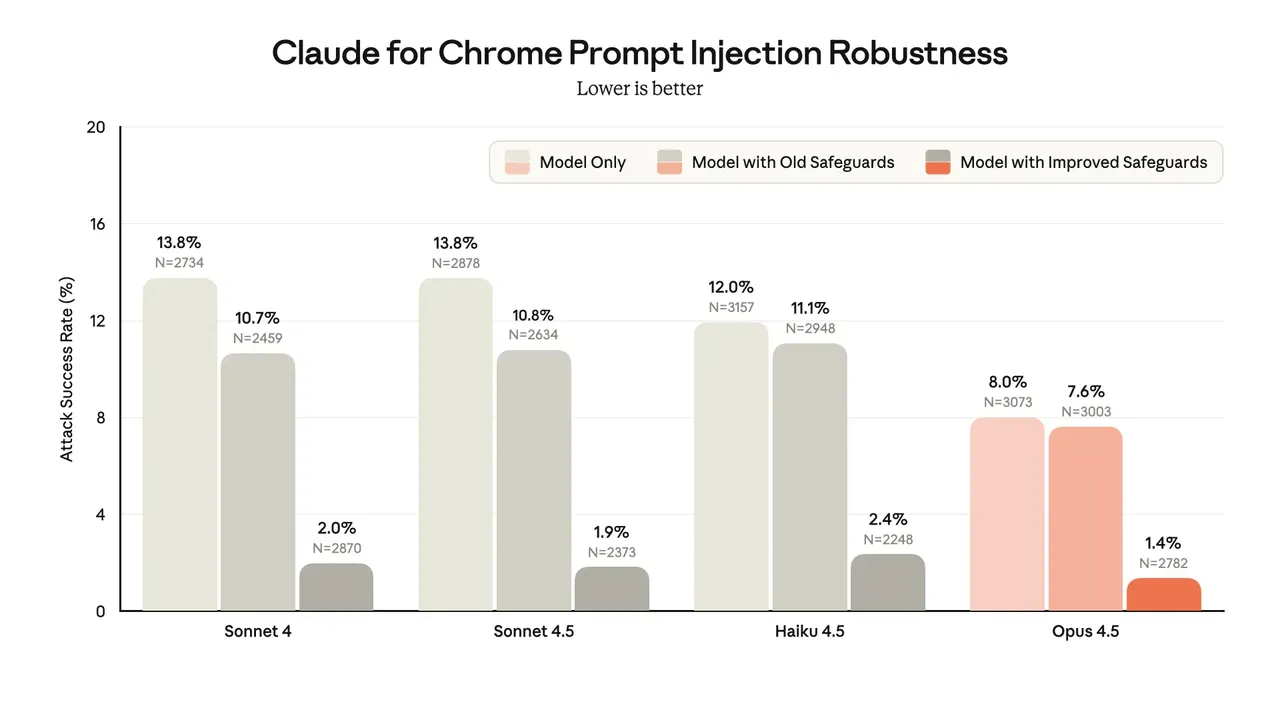
Anthropic published data from their prompt injection testing: even with defenses active, 11.2% of adversarial attacks still succeeded. OpenAI has acknowledged that prompt injection in browser agents is "unlikely to ever be fully solved." These aren't theoretical risks — researchers have found real indirect prompt injection payloads in the wild, embedded on ordinary websites targeting AI agents that browse them. That doesn't mean you shouldn't use browser agents. It means you should keep high-stakes actions behind a manual confirmation, and work through the security questions that separate careful use from blind trust before you hand one a login you care about.
A Sanity-Check Before You Automate Anything in Your Browser
Before adding a browser agent to any workflow, ask yourself three questions:
-
Do I do this at least once a week? If it's a one-off task, setting up the agent and granting permissions will take longer than just doing it yourself. Browser agents pay off on repetition.
-
What happens if the agent gets it wrong? If a wrong entry means you need to edit a CRM field, that's fine. If a wrong entry means a client gets the wrong invoice amount, that's a different conversation. Match the agent's autonomy to the stakes.
-
Does this task follow a predictable path? Agents work best when the steps are the same every time. If the workflow branches based on judgment — "if the client seems annoyed, soften the tone" — that's still your job.
I keep coming back to this framework. It's not fancy, but it stops me from automating things that shouldn't be automated yet.
Where Browser Agents Fit in a Solo Operator's Stack
Browser agents aren't a replacement for your existing tools. They're a layer on top — worth adding only when you have clear, repeated browser workflows that eat your time. When the bottleneck outgrows single browser tasks and becomes running whole parts of the business alone, Claude's managed agents sit further along the same delegation spectrum.
Your core tools (CRM, email, docs, project management) stay the same. The browser agent sits on top as an automation layer for cross-tool tasks — the repetitive admin, the data gathering, the form filling that connects your core tools together.
What it doesn't replace: dedicated automation platforms like Zapier or Make for backend integrations, scripts for anything that needs to run reliably without supervision, or your own judgment for anything strategic.
For dev-leaning operators: the browser agent handles your signed-in web tools. Localhost and dev-server work routes through separate mechanisms (Codex's in-app browser, Claude's Code integration). Don't expect the Chrome extension to be your testing environment — it's designed for production web apps you're logged into.
Common Failure Modes and How to Catch Them Early
The agent enters wrong data and reports success. This happens more than outright failures. The agent fills a form, says it's done, and you discover later it put a phone number in the email field. Always spot-check the first three runs of any automated workflow.
Site layout changes break the workflow. SaaS tools update constantly. An agent that worked last week might click the wrong button after a UI redesign. If a scheduled workflow starts failing, check the target app's interface first.
The agent gets stuck silently. Both tools have gotten better at flagging problems, but sometimes the agent just… stops. Enable notifications. Don't assume silence means success.
Permission creep. It's easy to keep granting access to more sites. Periodically review your allowlists and revoke anything you're not actively using.
That's the honest picture as I see it right now. Browser AI agents are useful — genuinely useful — for the right tasks. But they're not magic, and the gap between the demo and the daily grind is still real.
I'll know more in a few weeks. That part never really ends.
https://floatboat.ai/blog/browser-ai-agent-what-it-can-do