
Let a Workflow run your routine jobs
Have your Agent turn a job with the same steps every time into a Workflow. Run it with one click, or let it run on its own every morning.
Some jobs never change. Only the date does. For example:
- If you run an online shop, every morning you copy yesterday's orders from the shop dashboard into a spreadsheet.
- If you handle the office paperwork, every Friday you list the invoices that haven't been paid.
- If you teach, before every trip you check the sign-up form against the class roster to see who's missing.
Jobs like these are a good fit for a Workflow. A Workflow is a written-down routine that does the same steps every time. You can run it with a click, or have it run by itself at a set time while you get on with your day.
How is that different from a Combo Skill? A Combo Skill is a way of working that your Agent follows inside a task, adjusting as it goes. A Workflow is a fixed set of steps that runs the same way every time. Use it for jobs that don't need any judgment calls.
The examples on this page follow Alex, who runs a small online shop and rounds up the previous day's orders every morning.
Ask your Agent to write one
You don't write it yourself. In any task, tell your Agent what the job is: the steps, where the data comes from, and where the results go. For example:
Write me a Workflow: every morning, open the shop dashboard and copy yesterday's orders into orders-2026.xlsx.
Your Agent may ask a couple of questions first, like the dashboard's address or where the spreadsheet lives. Then it takes a look at the page it'll be working with, writes the Workflow, checks it, and does a Test Run. A Test Run only walks through the steps; nothing is written to your spreadsheet. Once it's saved, it shows up under My.
If the Workflow uses a website, like your shop dashboard, sign in to that site in Floatboat's browser first. The Workflow opens pages with that sign-in, so you don't have to hand it your password.
Find it under My
Click My in the sidebar, then the Local Workflows tab.
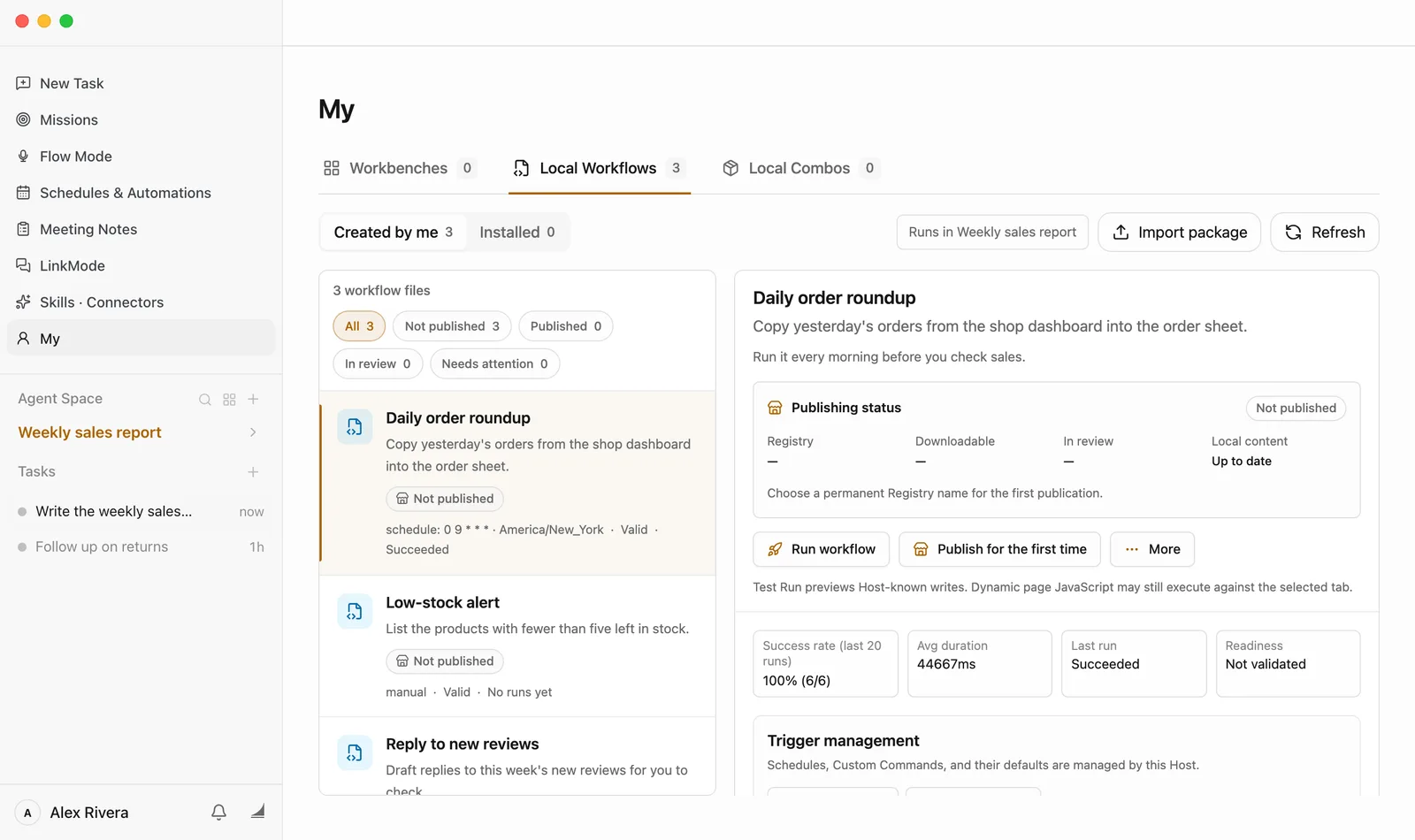
- Created by me holds the Workflows your Agent wrote for you. Installed holds ones you got from the Store or imported from a file.
- Click a Workflow on the left to see its details on the right: what it does and how its recent runs went.
- Runs in … at the top right names the space the Workflow will run in. That's the space you have open. To run it somewhere else, switch to that space in the sidebar first.
Run it once
Click Run workflow
It's near the top of the details.
Fill in this run's values, then click Run workflow
Some Workflows ask for a few values before each run, like Which day. The gray text under each one tells you what to put there. Anything marked Optional can stay empty and the default is used. What you enter here only applies to this run.
If a Workflow doesn't need anything, it starts right away.
Check the Latest result
When it's done, Latest result shows Succeeded and what the run produced. Scroll down for Recent runs, which lists every run. If the run created a file, it's under Artifacts. Click Open artifact file to open it.
Want to stop a run partway? Click Stop run, which takes the place of the run button while it's going.
You can also just tell your Agent in a task, "run the daily order roundup." It runs the Workflow and tells you how it went.
Watch it work in the browser
When a Workflow needs a website, it works in Floatboat's browser. If you have that page open, you can watch it go step by step: open the page, fill in the date, click Search, and page through the results. It does all the clicking itself, so you don't have to touch the mouse.
- A yellow robot on the tab means a Workflow is using that page. It goes away on its own when the Workflow is done.
- Leave the page alone while it runs. If you click around, it may not find the button it's looking for. Wait until the robot is gone.
- The page doesn't need to be open. The Workflow opens it in the background, without popping up the browser or interrupting what you're doing. To watch, open the browser and click the tab it's using.
Try a Test Run first
For a brand-new Workflow, or one that changes something important, do a test first: click More, then Test Run. A Test Run lists what the Workflow would write or submit, without actually doing it.
A Test Run holds back the changes Floatboat knows about, but a web page's own scripts can still run for real. If your Workflow places orders, pays for things or sends messages on a website, keep an eye on which page it opens during a test.
Run it every day on a schedule
If a Workflow needs to run every day, Floatboat can run it for you at the set time.
Click Add schedule under Trigger management
Trigger management is in the details, below the row that starts with Success rate.
Pick how often and when
For Frequency, choose Every day, Weekdays, Weekly or Custom. Then set the Execution time. Timezone follows your computer's setting, so you usually don't need to touch it.
The Binding name is already filled in. Change it if you like. The values under Workflow inputs are used for every scheduled run. Fill in the required ones; the optional ones can stay empty.
Click Save binding
A new card appears under Trigger management. It says Enabled, when it runs, and when the next run is.
The buttons on the card:
- Run once runs it now with these settings, without waiting for the time.
- Pause trigger takes a break, for a holiday say. Click Resume trigger to start again.
- The pencil changes the time, frequency or inputs.
- The trash can removes this schedule. The Workflow itself stays, and you can still run it by hand.
Floatboat needs to be open for scheduled runs, even if it's just in the background. If it was closed at the set time, the missed run happens once the next time you open it.
Install ready-made Workflows from the Store
Click Skills · Connectors in the sidebar to open the Combo Skills Store, then click the workflow tab at the top.
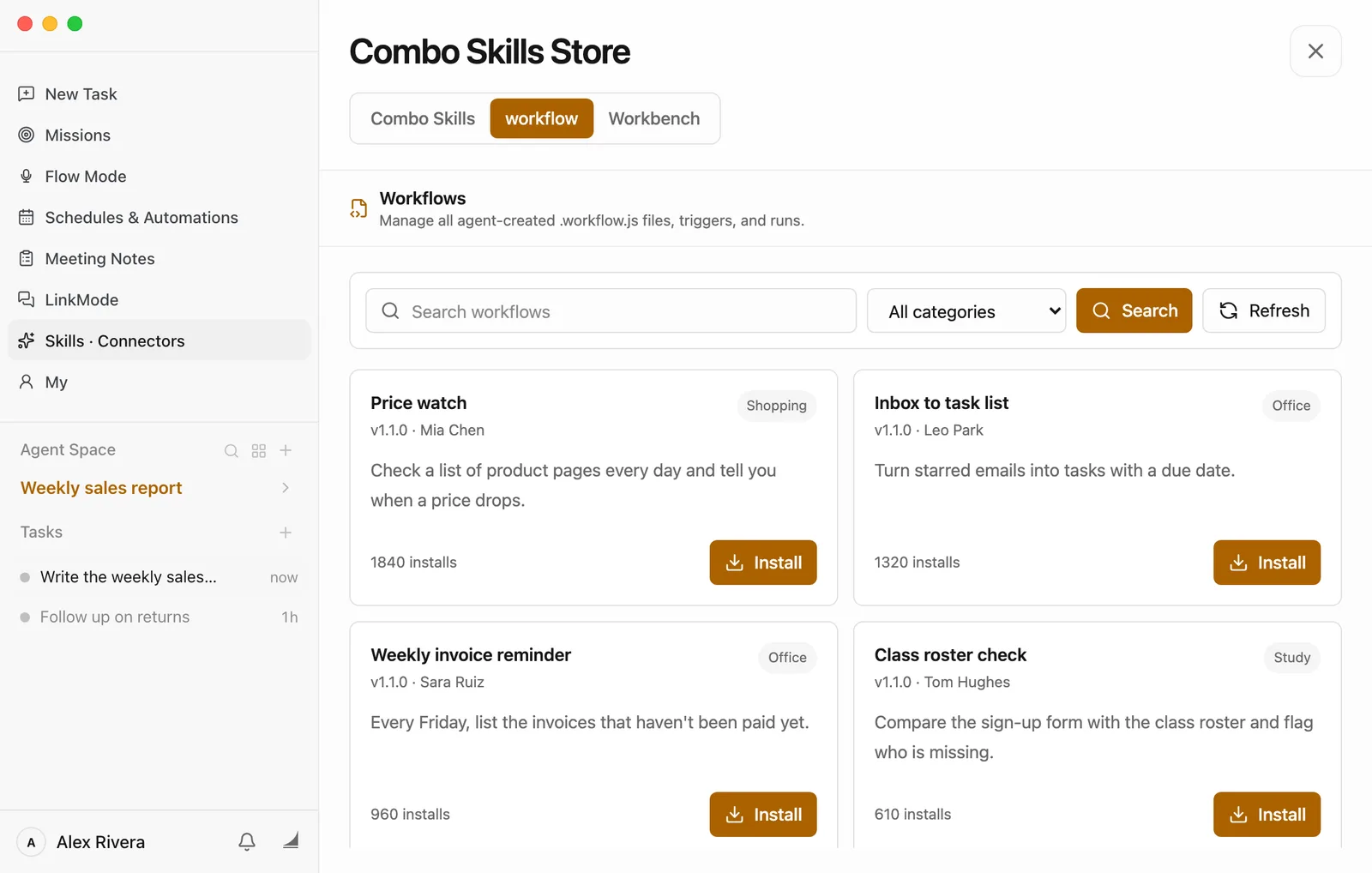
Use the search box or the categories to look around. When something looks useful, click Install on its card. It then shows up under My › Local Workflows › Installed, and works just like one your Agent wrote.
Some Workflows use Credits each time they run. Execution billing in the details says how much and when it's charged. Free ones don't show a charge.
If someone sends you a Workflow file, click Import package on the Local Workflows tab to bring it in.
Delete a Workflow you don't need
In the details, click More, then Delete, then Delete permanently. This removes the Workflow and its file for good.
Something not working?
- There's no Local Workflows tab under My. Make sure you're signed in and online, then open My again.
- The run says Action required. The Workflow needs you partway through, maybe because a site wants you to sign in again or type a code. Click Open required page, sort it out, then click Retry after user action.
- The run failed. Most often the site it uses is signed out, or the page has changed. Open that site in Floatboat's browser and take a look. If the page really did change, go back to a task and ask your Agent to update the Workflow.
- It says tab in use. Another task or Workflow is using the same page. Wait for it to finish, then run again.
- The scheduled time came and went. Check that Floatboat was open then, and that the card says Enabled. If you paused it, click Resume trigger.
- An installed Workflow says Key expired or Unavailable. Go online and refresh. Floatboat checks again whether your account can use it.
What's next
Build a workbench for the work you do every day
Have your Agent build a small app just for your space, with data that stays on your computer.
Save what works as a Combo Skill
For jobs where your Agent needs to adapt, a Combo Skill is the better fit.
Plan your days with Float Schedule
Put your events on a calendar and get reminded before they start.
Save what works as a Combo Skill
Add ready-made Combo Skills from the store, use them in any task, and save a task that went well as your own, so you don't have to explain the same job twice.
Build a workbench for the work you do every day
Tell your Agent what you need, and it builds a small app just for your space, with its own pages and data that stays put. You can change it, share it, and take it to a new computer.