
Best Calendar App for Solo Operators: A Practical Test
Choose the best calendar app for a solo business with one repeatable test covering devices, accounts, tasks, booking, sharing, privacy, automation, offline use, and exit.
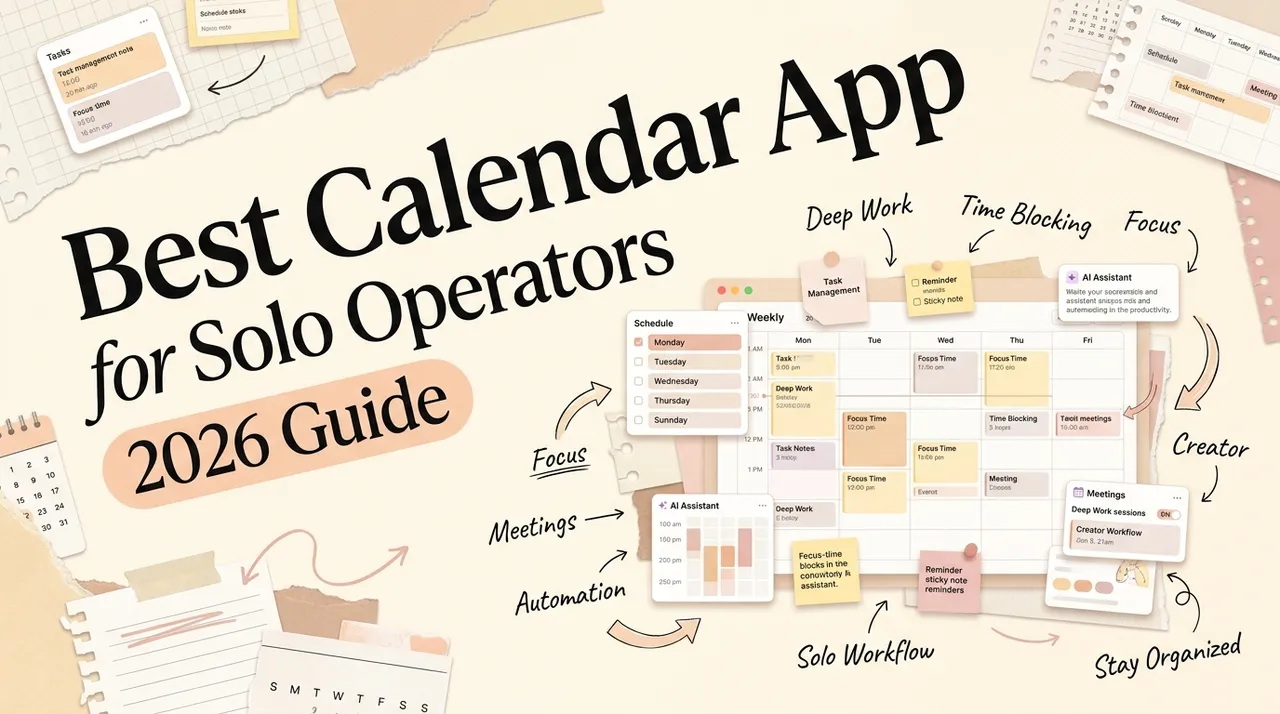
Information checked October 13, 2026.
The best calendar app for a solo operator is the one that preserves a trustworthy schedule across every account and device without creating another system to maintain.
That answer may be Google Calendar, Apple Calendar, Outlook, Fantastical, or a planning layer such as Morgen. An automatic scheduler may help if unscheduled tasks are the problem. But those products solve different jobs, so a feature-count ranking is misleading.
This guide uses one test protocol and makes recommendations by operating pattern. It does not repeat the detailed ecosystem comparisons in Google Calendar vs Apple Calendar or Google Calendar vs Outlook.
First identify the calendar job
Solo operators often ask one tool to do four jobs:
| Job | Required behavior | Product category |
|---|---|---|
| System of record | Store events, recurrence, attendees, availability, and reminders | Google Calendar, iCloud Calendar, Exchange/Outlook |
| Calendar client | Present one or more providers with faster capture and better views | Apple Calendar, Outlook, Fantastical |
| Planning layer | Place tasks beside events and support time blocking | Outlook with To Do, Fantastical, Morgen, similar planners |
| Automatic scheduler | Move flexible work around fixed commitments | Reclaim, Motion, and comparable schedulers |
A client can display an event without owning it. A planner can place a task on a timeline without becoming the authoritative task database. An automatic scheduler can create time blocks while the underlying provider remains Google or Microsoft.
Write down the source of truth for events and tasks before testing. Otherwise, duplicate events and conflicting edits can make a new interface look like a sync problem.
The short recommendations
| Your operating pattern | Start with | Why |
|---|---|---|
| Google account, browser-first, clients book time | Google Calendar | Native sharing, availability, and appointment scheduling in one account system |
| Apple devices, simple personal schedule | Apple Calendar with iCloud | Low-friction system integration and iCloud sync |
| Microsoft mail, Teams, and To Do | Outlook | Events, email, meetings, and tasks share one Microsoft environment |
| Several providers and fast calendar capture | Fantastical | Multi-account client, calendar sets, tasks, and availability tools |
| Tasks need deliberate time blocking across accounts | Morgen or another planning layer | Planning is the main job rather than event storage |
| Flexible tasks repeatedly collide with meetings | Test an automatic scheduler | Useful only if its rescheduling rules survive your test week |
These are starting points, not permanent winners. Availability, provider support, and plan gates change. Verify each required feature in the official documentation and the actual plan you intend to buy.
Candidate boundaries that matter
Google Calendar: strong default for a Google-centered business
Google Calendar is a practical base when client invitations, Meet links, shared Google calendars, and browser access already define the workflow. Google documents how appointment schedules can check selected calendars for conflicts and notes that checking secondary calendars requires an eligible Google Workspace or Google One plan. Test with the account that will host the booking page.
Google Tasks can appear on the calendar, but an event and a task remain different objects. Test recurring tasks, timed tasks, mobile completion, and visibility on shared calendars instead of assuming parity with a dedicated task manager.
Apple Calendar: best when simplicity and Apple integration come first
Apple Calendar is a strong client for people whose working devices and shared calendars are primarily in the Apple ecosystem. Apple documents iCloud Calendar access across iPhone, iPad, Mac, Windows, and iCloud.com, but experience and feature depth vary by surface.
Its role is calendar management, not automatic task prioritization. If booking pages, mixed-provider planning, or complex task scheduling are essential, test an additional layer rather than expecting the built-in client to become one.
Outlook: best fit when the work begins in Microsoft mail
Outlook deserves priority when appointments originate in email, meetings run in Teams, and tasks live in Microsoft To Do. Microsoft’s official My Day documentation shows events and To Do tasks together and supports dragging a task onto the calendar.
That integration does not make every Outlook surface identical. Test the exact web, Windows, macOS, iOS, or Android clients you use, along with external invitations and shared calendar permissions.
Fantastical: a multi-provider client, not a new calendar backend
Fantastical is useful when a solo operator wants several calendar services in one Windows client. Its official Windows settings page lists iCloud, Google, Exchange, Microsoft 365 and CalDAV account support, while its Windows FAQ limits editable tasks to Google Tasks, Microsoft 365 tasks and Todoist. Test the exact calendar and task accounts you use.
The important limitation is architectural: Fantastical usually operates on provider data. Provider APIs determine some recurrence, task, sharing, and sync behavior. Test every important account type rather than generalizing from one.
Planning and automatic scheduling layers
Morgen and similar planners are worth testing when the problem is combining calendars and placing tasks into time. Reclaim, Motion, and other automatic schedulers are a different category: they create or move blocks according to priorities, deadlines, availability, and rules.
Do not accept claims such as “it always protects focus” or “it will reorganize the day correctly.” Give each tool the same conflict cases, inspect every write it makes, and confirm current provider support, mobile behavior, privacy terms, and plan limits in official materials.
A seven-day calendar test protocol
Create a separate test calendar and use the same representative week in every candidate.
1. Platform and account test
Connect only the accounts you genuinely use. Verify web and native availability, phone behavior, notification delivery, time-zone display, keyboard capture, and offline access. Do not award points for a platform you will never open.
2. Calendar correctness test
Create:
- a recurring weekly meeting;
- an all-day deadline;
- an event across a daylight-saving transition;
- an invitation from another provider;
- a private event shown only as busy;
- a canceled and then restored meeting.
Edit each on one device and verify all other devices and attendees. Calendar correctness is more important than visual polish.
3. Tasks and planning test
Add five tasks: one fixed-time task, one deadline without a scheduled time, one recurring task, one task with subtasks, and one postponed task. Check which system owns completion state, recurrence, duration, and notes. Watch for duplicate tasks created by bidirectional integrations.
4. Sharing and booking test
Share free/busy access with a test account, invite an external attendee, delegate one calendar if needed, and publish a booking link. Confirm which calendars block availability, what event details the other person can see, whether buffers and booking limits work, and who can edit or reshare.
Google’s privacy documentation states that personal Calendar content is private unless shared and that work or school administrators may have additional visibility. The general lesson applies everywhere: account ownership and sharing policy matter as much as the app interface.
5. Automation stress test
For a scheduling layer, create two high-priority tasks, a movable focus block, a hard deadline, travel time, and a surprise meeting. Then:
- move the deadline earlier;
- cancel the meeting;
- mark one task complete elsewhere;
- revoke calendar access temporarily;
- edit a generated block manually.
Record unexpected moves, duplicates, stale blocks, and how easily you can undo or pause automation.
6. Privacy and permission review
Inventory every account, calendar, task list, contact source, email source, and conference service the app can access. Check whether processing happens on device or on vendor servers, which data is used for booking or AI features, retention and deletion controls, administrator visibility, analytics, and how to revoke access.
Free/busy is often enough for conflict checking. Do not expose event titles, notes, attendee lists, or mail unless the feature genuinely needs them.
7. Exit test
Export a calendar in a standard format where supported, remove the test integration, revoke its OAuth grant, and confirm that provider events remain intact. Document what does not migrate: booking links, automation rules, task durations, calendar sets, meeting templates, or activity history.
Score what affects a one-person business
Use a simple weighted score and change the weights to fit your work:
| Criterion | Suggested weight | Evidence |
|---|---|---|
| Event correctness and sync | 25 | Seven-day test results |
| Device and account fit | 20 | Required surfaces all pass |
| Booking and external collaboration | 15 | External-user test |
| Task and planning fit | 15 | Five-task test |
| Privacy and permissions | 15 | Data-flow and access review |
| Automation control and recovery | 5 | Stress test and undo behavior |
| Exit and portability | 5 | Export and revoke drill |
Price should be compared only after the candidates pass the required controls. Use the current total for your accounts, devices, booking features, and automation usage; do not rely on a price quoted in an undated comparison.
Common selection mistakes
Choosing an interface before choosing the source of truth
Decide whether Google, iCloud, or Microsoft owns the authoritative calendar and where tasks live. Add a client or scheduler only after that boundary is clear.
Treating a due date as scheduled time
A task due Friday is not necessarily a Friday time block. Verify how every integration represents due date, start time, duration, completion, and recurrence.
Sharing event detail when free/busy is enough
Solo operators often mix client, personal, and administrative calendars. Use separate calendars and the least revealing sharing level.
Enabling automatic rescheduling before observing it
Start in a test calendar or with draft-like controls. Review a week of proposed changes before allowing a tool to move real commitments.
Expecting a calendar to execute the work
A calendar can reserve time, protect availability, and notify you. It does not guarantee that the proposal is written or the follow-up is sent. If execution is the real problem, compare the boundaries in calendar-driven AI vs chat AI rather than switching calendar clients again.
Final choice by operating pattern
- Choose Google Calendar when Google is already the business identity and booking or external sharing is central.
- Choose Apple Calendar when the schedule is straightforward and Apple integration matters more than planning features.
- Choose Outlook when email, Teams, and Microsoft To Do form the daily control surface.
- Test Fantastical when several providers, rapid capture, and calendar views are the problem.
- Test Morgen or another planning layer when tasks need deliberate placement across calendars.
- Test an automatic scheduler only when flexible work repeatedly loses time to fixed events and you are willing to maintain priorities, durations, and rules.
The “best” app is the smallest system that keeps the schedule correct, exposes only necessary data, and survives the week you actually work—not the week shown in a product demo.
https://floatboat.ai/blog/best-calendar-app-solo-operators